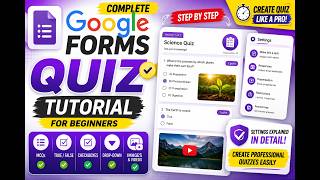
How to Create and Publish Google Forms from Mobile, by randomlearn on YouTube. 2 min 31 s.
- Video length
- 2 min 31 s
- Time to do it
- 10 minutes
- Difficulty
- Easy
- Steps
- 8
What you need
Steps
Install the Google Forms app from the Play Store or App Store, or open forms.google.com in your phone browser and sign in with your Google account.
Tap the plus button to start a blank form, then type a title and description at the top.
Tap the first question box, type your question, and choose an answer type such as short answer, multiple choice or checkboxes.
Turn on Required for questions people must answer, and use the copy and drag icons to duplicate or reorder them.
Tap the palette icon to pick a theme colour and font, then tap the eye icon to preview the form on your phone.
Open the three-dot menu and tap Settings to collect email addresses, limit responses to one per person or shuffle questions.
Tap Send, choose link, email or embed, then copy the link and share it with your group.
Open the Responses tab and tap the three-dot menu to link responses to Google Sheets or download a CSV file.
Tips and common mistakes
Google Forms has no separate publish button. The form goes live as soon as you share its link.
Preview the form on your phone before sending, since grids and images can look cramped on small screens.
Mark key questions as required so people cannot submit an incomplete form.
Shorten the link if you share it by text message, where long URLs are hard to read.
Questions
Do I need the Google Forms app to make a form?
No. You can use forms.google.com in your phone browser, but the app is easier for editing and checking responses.
Where do the answers go?
They stay in the Responses tab of your form. You can also send them to a Google Sheet or download them as a CSV file.
Can I edit a form after sharing it?
Yes. Changes save automatically and appear for anyone who opens the link, though people who already submitted keep their original answers.
This guide was drafted from the video's details and general task knowledge. It has not been checked against the full video. Check the video and relevant product instructions before following a procedure. Report a correction.