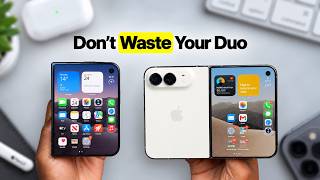
Learn the everyday basics of the iPhone Duo, from its folding screens and side button to gestures, Split View, Control Centre and key settings. It suits anyone new to the phone or moving from a standard iPhone. Have the phone charged and set up before you start.
YouTube video: iPhone Duo Beginners Guide: How to Use iPhone Duo
Caption availability is unknown. Check the CC control in the YouTube player.
Choose a chapter (30)
- Video length
- 40 min 15 s
- Time to do it
- 45 minutes
- Difficulty
- Easy
- Steps
- 10
What you need
Steps
Open and close the phone to see how the folding screens change layout. Rotate the phone to check which orientation each screen uses.
Press the side button to wake or lock the phone. Set up Touch ID so you can with a fingerprint instead of typing your passcode.
Use the Camera Control button to open the camera and adjust settings. Press it lightly to preview and fully to take a shot.
Swipe up from the bottom edge to go Home. Swipe up and hold to open the App Switcher, then swipe an app up to close it.
Pull down from the top left for notifications and from the top right for Control Centre. Tap and hold icons to change settings like brightness.
Open Split View to run two apps side by side. Drag an app from the dock or App Switcher onto the screen to place it next to the first.
Touch and hold an app icon to move it or drop it onto another to make a folder. Tap the minus sign to delete apps you do not need.
Touch and hold the Home Screen to add widgets. Pick a widget size and drag it where you want it.
Go to Settings, then Touch ID and Passcode, to add a fingerprint and change your passcode.
Open Settings to adjust battery, display, sound and StandBy options. Turn on Low Power Mode when the battery runs low.
Tips and common mistakes
Set up Touch ID before you rely on the phone, since it makes unlocking and purchases much faster.
Check Control Centre first when a setting seems missing, as many toggles live there.
Turn off the Always-On display if you want to save battery.
Menu names and features can change with software updates, so check Settings if a label looks different.
Questions
Do I need to set up the iPhone Duo before following this guide?
Yes. This guide covers everyday use after initial setup, so finish the setup process and sign in to your Apple Account first.
How do I run two apps at once?
Use Split View. Open one app, then drag a second app from the dock or App Switcher onto the screen to place them side by side.
Where do I change the passcode?
Open Settings, tap Touch ID and Passcode, and enter your current passcode to change it.
The notes are drafted automatically from video details and general task knowledge. How the guide was prepared
Report a correction