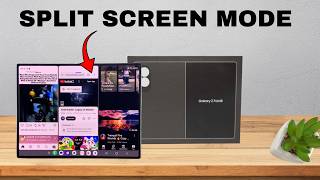
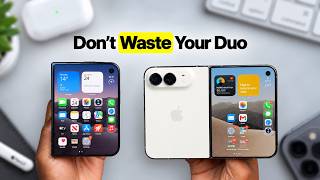
Split the iPhone Duo's foldable screen between two apps so you can browse and take notes at the same time. It suits anyone new to the Duo's multitasking view. You need the iPhone Duo with split screen support and two apps that work with it. Each app always takes half the screen.
YouTube video: How to Multitask on iPhone Duo 😱 Use 2 Apps at Once!
Caption availability is unknown. Check the CC control in the YouTube player.
- Video length
- 1 min 53 s
- Time to do it
- 2 minutes
- Difficulty
- Easy
- Steps
- 8
What you need
Steps
Unfold the iPhone Duo and open the first app you want, such as Safari, Notes or Photos.
Swipe up from the bottom of the screen and hold until the multitasking view appears.
Tap the second app you want to pair with it, like Messages or Notes, in the multitasking view.
Both apps open side by side, each taking exactly half of the large display.
Tap either side to make that app active, then work in it as normal.
Copy text from one app and paste it into the other to move information across.
To swap an app, open the multitasking view again and pick a different one for that side.
To go back to a single app, open the multitasking view and choose one app on its own.
Tips and common mistakes
The layout is fixed at 50/50, so you cannot drag the divider to resize the apps the way you can on an iPad.
Check that your chosen pair supports split screen before you rely on it for work.
Copying and pasting between the two halves is quicker than switching apps back and forth.
Questions
Can I resize the two apps?
No. The iPhone Duo uses a fixed 50/50 split, so both apps always take half the screen. This differs from iPad Split View, where you can drag the divider.
Which apps work side by side?
Only apps that support the Duo's multitasking. Safari, Notes, Messages, Photos and iMovie are named as working examples.
What is split screen actually useful for?
Browsing while taking notes, copying details from one app into another, checking Messages while Safari stays open, or editing photos while a second app is visible.
The notes are drafted automatically from video details and general task knowledge. How the guide was prepared
Report a correction