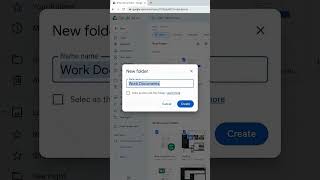
How To Organize Files On Your Mac, by macmostvideo on YouTube. 11 min 39 s.
- Video length
- 11 min 39 s
- Time to do it
- 30 minutes
- Difficulty
- Easy
- Steps
- 10
What you need
Steps
Open Finder and go to your Documents folder. Keep most personal files here instead of scattering them across the desktop or home folder.
If you use iCloud, turn on Desktop and Documents syncing in System Settings under your Apple ID and iCloud Drive. Your Documents folder then syncs across your devices.
Inside Documents, create broad subfolders for your main areas, such as Work, Personal, Finances and Projects. Right-click and choose New Folder, or press Shift Command N.
Switch Finder to Column or List view so you can see folder contents and move files quickly. Use the view buttons at the top of the Finder window.
Add narrower subfolders inside each main folder as you collect more files. For example, put year or client folders inside Work.
Rename and move folders as your needs change. A system that fits last year may not fit this year, so adjust it instead of forcing old habits.
Drag your most-used folders into the Finder sidebar so they are one click away. You can also add folders by dragging them to the Favorites section.
Set a default folder for new Finder windows in Finder Settings under General. Pick the folder you open most often.
Clean out your Downloads folder regularly. Sort by date, delete installers you no longer need and file anything worth keeping into Documents.
Move screenshots off the desktop into a Screenshots folder. Change the save location in Screenshot options so new shots land there automatically.
Tips and common mistakes
Keep folder names short and clear so you can find them fast in search.
Avoid storing important files only on the desktop, where they get buried easily.
If you do not want iCloud syncing, create a local folder outside iCloud Drive for private or large files.
Empty the Trash only after you are sure the files are not needed.
Questions
Should I use iCloud Drive for my Documents folder?
It helps if you use more than one Apple device, because files stay in sync. If you prefer local storage, keep Documents on your Mac and skip the iCloud setting.
How many folders should I create?
Start with a few broad folders and add subfolders only when a folder gets crowded. Too many folders at the top level makes finding things harder.
Where do screenshots go by default?
They usually save to the desktop. You can change the save location in the Screenshot toolbar options to a dedicated folder.
This guide was drafted from the video's details and general task knowledge. It has not been checked against the full video. Check the video and relevant product instructions before following a procedure. Report a correction.