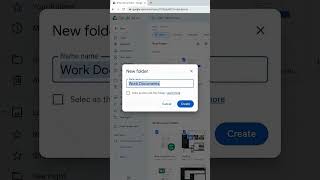
Google Drive “Suggest File Moves” Missing? Use Gemini to Organize Files, by TechFix Guides on YouTube. 3 min 19 s.
- Video length
- 3 min 19 s
- Time to do it
- 10 minutes
- Difficulty
- Easy
- Steps
- 8
What you need
Steps
Open Google Drive in your browser and sign in with the Google account you want to tidy up. Make sure you are working in My Drive, not Shared drives.
Look for Suggest File Moves in My Drive or inside a parent folder. The option usually appears in those places only, not in every subfolder.
Know what the feature does: Gemini reads your loose files and proposes folders and moves that would make your Drive easier to browse.
Open the suggestions and review each proposed folder and file move before you accept anything. Nothing should change on its own.
Select or deselect files in the list so only the ones you agree with are included. Adjust the destination folder where the suggestion is wrong.
Rename any suggested folder that does not fit your naming habit, then apply the changes you approved.
If the option is missing, check that your account has an eligible Workspace or Google AI plan and that Gemini in Drive is turned on for you.
Still missing? Check your smart features setting and language, then wait for the rollout to reach your account.
Tips and common mistakes
Gemini only suggests moves. Review every recommendation before applying, because bulk moves are slow to undo by hand.
The feature may not appear in deeply nested subfolders, so start from My Drive or a top-level folder.
If your language is not supported yet, switching Drive to English can sometimes reveal the option.
Keep folder names short and consistent so future suggestions match the way you already file things.
Questions
Why is Suggest File Moves not showing in my Google Drive?
Your account may not have an eligible Workspace or Google AI plan, Gemini in Drive may not be enabled, smart features may be off, your language may be unsupported, or the rollout simply has not reached you yet.
Will Gemini reorganize my Drive without asking?
No. It should only suggest folders and moves. You select or deselect files, adjust destinations and rename folders, then apply the changes yourself.
Where do I look for the option?
Check My Drive first, then try a parent folder. It may not appear in every folder, especially deeper subfolders.
This guide was drafted from the video's details and general task knowledge. It has not been checked against the full video. Check the video and relevant product instructions before following a procedure. Report a correction.