DIGITAL ORGANIZATION TIPS | the BEST way to sort files, custom google calendar & wallpaper ideas, by Caitlin's Corner on YouTube. 17 min 28 s.
- Video length
- 17 min 28 s
- Time to do it
- 1 hour
- Difficulty
- Easy
- Steps
- 10
What you need
Steps
Open your file manager and look at where your files currently live. Note the folders you actually use and the ones you never open.
Set up four top-level folders: Projects, Areas, Resources and Archive. Projects hold things with a deadline, Areas hold ongoing responsibilities, Resources hold reference material, and Archive holds finished work.
Skip organizing files you will never open again, such as old installers or duplicate downloads. Delete those instead of filing them.
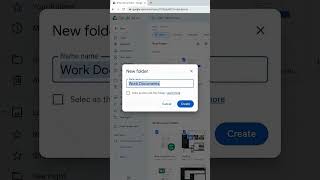
Create the four PARA folders in your main drive and move your existing documents into the matching one. Keep folder names short and consistent.
Clear out your Downloads and Desktop folders. Delete duplicates, move anything worth keeping into PARA, and empty the trash.
Recreate your PARA structure in Notion with one page per folder. Add your project notes and links there so files and notes stay in the same system.
Make a desktop wallpaper in Canva with labeled zones for files, links and current projects. Export it as a PNG and set it as your background.
Change your main folder icons to custom images so each PARA folder is easy to spot at a glance.
Copy your whole organized drive to an external SSD or cloud service. Set a recurring reminder to repeat the backup.
Add your projects and deadlines to Google Calendar, and give each calendar a color so work, personal and admin items are easy to tell apart.
Tips and common mistakes
Do not spend hours sorting files you will never need again; deleting is faster than filing.
Name folders the same way every time so search and sorting stay predictable.
Keep one backup on a separate drive, not just in the same laptop.
Review your PARA folders once a month and archive anything finished.
Questions
What does PARA stand for?
Projects, Areas, Resources and Archive. Projects have a deadline, Areas are ongoing, Resources are reference material, and Archive is finished or inactive work.
Do I need Notion to organize my files?
No. The four folders work on their own. Notion just keeps your notes and links next to the same structure.
How often should I back up?
At least once a week if you work on the laptop daily, and always before a big cleanup or reinstall.
This guide was drafted from the video's details and general task knowledge. It has not been checked against the full video. Check the video and relevant product instructions before following a procedure. Report a correction.