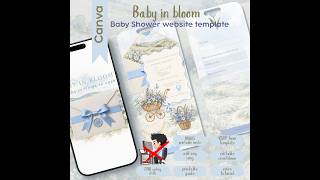
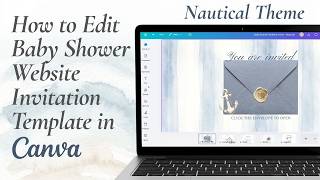
DIY Baby Shower Website Invitation in Canva | Pink Toile Theme RSVP, Music & Countdown #babyshower, by Grateful North Star on YouTube. 3 min 1 s.
- Video length
- 3 min 1 s
- Time to do it
- 30 minutes
- Difficulty
- Easy
- Steps
- 10
What you need
Steps
Open the template in Canva from your purchase link and click Duplicate so your edits stay on your own copy. Give the design a clear name, like Baby Shower Website.
Click the title text and type the parents' names, then update the date, time and venue lines. Change the font and text colour from the toolbar if you want a different look.
Select the countdown clock and set your shower date and time. You can change the timer's font, size and colour, but leave the numbers readable on a phone screen.
Add background music by opening the Apps tab, choosing Embed and pasting your YouTube video link. Drag the player into a corner where it does not cover your text.
Click a registry button, choose the link icon and paste your registry web address. Repeat for each store button so every shortcut opens the right page.
Make the venue button open maps by linking it to a Google Maps address for your party location. Test that the pin lands on the correct building.
Set up RSVPs by linking the RSVP button to a Canva form or a Google Form. Ask for name, number of guests and any dietary notes.
Move, resize or delete the toile illustrations as you like. The pink artwork colours are locked, so pick text and button colours that sit well with them.
Publish the design as a Canva website, copy the link and open it on your own phone. Check the envelope reveal, countdown, music and every button before sending it.
Open the bonus 5x7 card layout, adjust the wording and download it as a PDF Print file if you want to mail paper copies to grandparents.
Tips and common mistakes
Send the link to yourself first and tap every button on a phone, since most guests will open it on mobile.
Keep the countdown date in the same time zone as your venue so the timer does not roll over early.
Embedded YouTube players often need a tap before they play, so tell guests the music button is there.
Leave the toile illustrations in their original pink hue and change text colours instead when you want a new palette.
Questions
Do guests need a Canva account to view the invitation?
No. A published Canva website opens in any browser from the link you send. Only you need an account to edit it.
Can I collect RSVPs without Canva?
Yes. Link the RSVP button to a Google Form and responses land in a spreadsheet you can track. Guests answer without signing in to Canva.
Can I still print a paper invitation?
The template suite includes a matching 5x7 card layout. Edit the text, then download it as a PDF Print file for home printing or a print shop.
This guide was drafted from the video's details and general task knowledge. It has not been checked against the full video. Check the video and relevant product instructions before following a procedure. Report a correction.