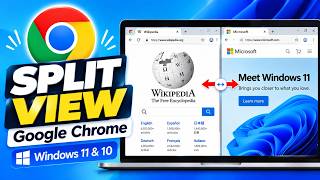
How to Use Split View in Mozilla Firefox on Windows 11 & 10 | GearUpWindows Tutorial, by GearUpWindows on YouTube. 4 min 8 s.
- Video length
- 4 min 8 s
- Time to do it
- 5 minutes
- Difficulty
- Easy
- Steps
- 8
What you need
Steps
Open Firefox and update it first. Click the menu button with three lines, choose Help, then About Firefox. Let any update download, then restart the browser.
Load the first website in a normal tab by typing its address in the address bar and pressing Enter.
Open a second tab with Ctrl+T and load the other website you want to compare.
Right-click one of the two tabs and choose the Split View option. Pick the other tab from the list to place both pages side by side.
If you cannot find the option, right-click the toolbar, choose Customize Toolbar, and drag the Split View button onto the toolbar.
Drag the divider line between the two panes left or right to give more room to the page you are reading.
Right-click either tab and use the swap option to reverse the left and right positions of the two pages.
To leave Split View, click the close split view button on one pane, or right-click a tab and remove it from the split. Both pages return to normal tabs.
Tips and common mistakes
If Split View is missing from the tab menu, your Firefox is out of date, so update and restart it.
Dragging the middle divider is quicker than closing and reopening tabs when one page needs more width.
Split View holds two pages only, so open a new window with Ctrl+N if you need a third site visible.
Questions
Why don't I see Split View in my Firefox tab menu?
The feature ships only in newer Firefox versions. Update through the menu, Help, About Firefox, then restart the browser and check the tab right-click menu again.
How do I get back to normal browsing?
Click the close split view button on either pane, or right-click a tab and remove it from the split. The two pages stay open as separate tabs.
Can I split more than two pages at once?
No. Split View shows two panes per window, so use a second Firefox window if you need more pages visible together.
This guide was drafted from the video's details and general task knowledge. It has not been checked against the full video. Check the video and relevant product instructions before following a procedure. Report a correction.