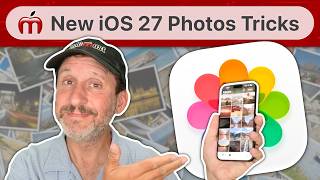
Use Your iPhone Like A Pro | 5 iPhone 18 Pro Photography Tips, by Zac Watson on YouTube. 15 min 56 s.
- Video length
- 15 min 56 s
- Time to do it
- 20 minutes
- Difficulty
- Easy
- Steps
- 6
What you need
Steps
Open the Camera app and switch to Portrait mode to see the aperture control. Tap the f-number icon and drag the slider to change background blur.
Pick a lower f-number for a blurrier background and a higher one to keep more of the scene sharp. Check the preview before you shoot.
Open Settings, scroll to Camera, then Formats. Choose the file type you want, such as HEIF for smaller files or ProRAW for more editing room.
Switch between the 0.5x, 1x and 2x or 3x lenses by tapping the zoom buttons. Avoid digital zoom past the optical range to keep detail.
Tap and hold on your subject to lock focus and exposure, then drag the sun slider down slightly to underexpose the shot.
Review the photo in the Photos app and adjust brightness or contrast in Edit if the shot looks too dark.
Tips and common mistakes
ProRAW files are much larger, so turn it off when you do not plan to edit.
Small underexposure protects bright skies, but do not go so dark that shadows lose detail.
Clean the lens before shooting, since smudges soften every photo.
Use the grid in Settings, Camera to keep horizons level.
Questions
Does changing aperture work on all iPhone models?
The aperture control appears in Portrait mode on supported models. On older phones the effect is simulated after the shot.
Should I always shoot in ProRAW?
No. Use it when you plan heavy edits, and stick with HEIF or JPEG for everyday photos to save space.
Why do my zoomed photos look grainy?
Digital zoom crops and enlarges the image. Stay within the optical zoom range or move closer to your subject.
This guide was drafted from the video's details and general task knowledge. It has not been checked against the full video. Check the video and relevant product instructions before following a procedure. Report a correction.