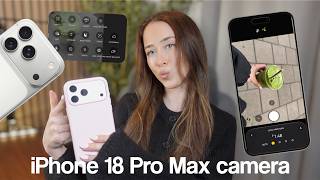
You will learn to shoot with the iPhone's real lenses, control exposure by hand and pick the right file format, then finish the shot in Lightroom. It suits anyone whose phone photos look soft, dark or washed out. You only need an iPhone and the free Lightroom mobile app.
YouTube video: You're ruining your iPhone photos (Fix this now)
Caption availability is unknown. Check the CC control in the YouTube player.
Choose a chapter (5)
- Video length
- 9 min 46 s
- Time to do it
- 20 minutes
- Difficulty
- Easy
- Steps
- 7
What you need
Steps
Open the Camera app and tap the 0.5x, 1x, 2x or 3x buttons to change lens instead of pinching the screen. Pinching crops the picture and softens the detail.
Tap your subject to place the focus box, then drag the small sun slider beside it up or down to brighten or darken the shot.
Check the bright areas before you shoot. If sky or skin looks blown out, drop the exposure a little and lift the shadows later while editing.
Set your file type. Go to Settings, then Camera, then Formats, and choose High Efficiency for smaller files or Most Compatible for JPEGs that open anywhere.
Pick a photo size. On newer iPhones choose 24MP for a good mix of detail and file size, and only switch to 48MP ProRAW when you plan to edit heavily.
Import the photo into Lightroom and adjust Exposure, Contrast, Highlights and Shadows first. Small moves beat big ones, so check the image after each slider.
Add colour last. Apply a preset or nudge Vibrance and White Balance, then export as a JPEG at full resolution for sharing.
Tips and common mistakes
Wipe the lens with a soft cloth before shooting, since a smeared lens is the most common cause of hazy iPhone photos.
Keep digital zoom under about 2x on top of an optical lens, or the phone starts inventing detail.
Shoot ProRAW only when you will edit the file, because those images take far more storage space.
Hold the phone with both hands and brace your elbows on your body for sharper low light shots.
Questions
Why do my iPhone photos look blurry when I zoom in?
You are probably pinching to zoom, which crops the sensor image and loses detail. Tap an optical lens button such as 2x or 3x instead, or move closer to the subject.
Should I shoot High Efficiency or Most Compatible?
High Efficiency saves space and is fine for everyday photos. Pick Most Compatible if you send files to older devices or apps that struggle with HEIC.
Do I need ProRAW to edit my photos?
No. Standard files edit well in Lightroom for most people. ProRAW gives more room to recover highlights and shadows but creates much larger files.
The notes are drafted automatically from video details and general task knowledge. How the guide was prepared
Report a correction