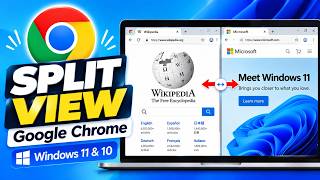
How to Split Screen in Windows 11, by ObTips on YouTube. 1 min 4 s.
- Video length
- 1 min 4 s
- Time to do it
- 2 minutes
- Difficulty
- Easy
- Steps
- 8
What you need
Steps
Open the apps you want to compare, such as a browser and a document. Make sure none of the windows is minimized, because Snap only works on windows already on screen.
Check that snapping is on. Open Settings, go to System, then Multitasking, and turn on the Snap windows switch. Leave the option to show snap layouts on the maximize button hover turned on.
Hover your mouse pointer over the maximize button in the top right corner of one window. A small grid of layout choices appears after a moment.
Pick a layout from the grid, for example two windows side by side or one large window with two smaller ones. Then click the zone where you want the current window to sit.
Click the other open window to drop it into the remaining zone, or press Windows key plus Z to bring the layouts back and choose a window for each empty spot.
Drag the divider line between the windows left or right to change how much space each one gets. Each window keeps its own scroll position and controls.
For a quick split without the mouse, press Windows key plus the left or right arrow to send a window to that half of the screen. Add the up or down arrow to move it into a quarter.
To undo the split, drag the window's title bar away from the edge or press Windows key plus the up arrow to maximize it again.
Tips and common mistakes
If the layout grid never appears, the Snap windows toggle in Settings, System, Multitasking is probably off.
Hover over a taskbar icon to see the snap group and restore all the windows you had arranged together.
Snapping works per monitor, so you can set up a different layout on each screen you use.
Very wide or high resolution screens show extra layout choices, including three columns.
Questions
Why does nothing happen when I hover over the maximize button?
Snap windows is likely switched off, or the window is minimized. Turn the toggle on in Settings, System, Multitasking, then hover over the maximize button again.
Can I split the screen into three or four windows?
Yes. Click a layout with three or four zones, then fill each zone with a different open window using the layouts menu or Windows key plus Z.
Does split screen work with more than one monitor?
Yes. Each monitor can hold its own snapped layout, so you can arrange windows separately on your laptop screen and an external display.
This guide was drafted from the video's details and general task knowledge. It has not been checked against the full video. Check the video and relevant product instructions before following a procedure. Report a correction.