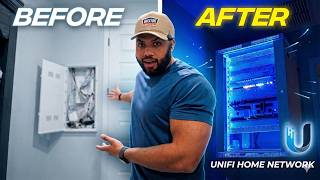
The Network Settings That Fixed My Apple Smart Home (Unifi IoT Setup), by Shane Whatley on YouTube. 16 min 25 s.
- Video length
- 16 min 25 s
- Time to do it
- 45 minutes
- Difficulty
- Medium
- Steps
- 9
What you need
Steps
Log in to your UniFi Network console and open Settings. Check your current network layout before changing anything so you know how devices connect now.
Create a separate VLAN and Wi-Fi network for IoT devices. Put smart plugs, sensors and cameras on it, and keep phones and computers on your main network.
Turn on IPv6 on the IoT network. Matter and Thread devices rely on it, so enable it in the network settings and let devices pick up addresses.
Enable mDNS and IGMP snooping on the IoT network. This lets Apple Home find devices across VLANs and keeps multicast traffic from flooding your network.
Set the IoT Wi-Fi to a 2.4 GHz band with a fixed channel and WPA2. Many smart devices do not support 5 GHz or WPA3, so keep the settings simple.
Allow multicast and broadcast traffic on the IoT network. Blocking it stops discovery, so check those options are not filtered.
Add basic firewall rules so IoT devices cannot reach your main network. Allow only the traffic they need, such as to your Apple Home hub.
Place your Apple Home hub near the center of your home and connect it by Ethernet if you can. A wired hub is more reliable than Wi-Fi.
Test reliability in the Apple Home app. Open each device, check it responds, and watch for No Response errors over a day or two.
Tips and common mistakes
Change one setting at a time and test, so you know which change fixed or broke something.
Keep your main network on a different Wi-Fi name than the IoT network to stop devices joining the wrong one.
If a device will not connect, temporarily disable firewall rules to rule them out before adding them back.
Write down your VLAN and firewall rules so you can undo them if a device stops working.
Questions
Do I need a separate VLAN for smart home devices?
It is not required, but it helps. A separate VLAN keeps IoT traffic apart from your computers and phones and makes firewall rules easier to manage.
Will these settings work without UniFi gear?
Yes, the same ideas apply to most routers. Look for IPv6, mDNS, IGMP snooping and guest network options in your router settings.
Why do my Matter devices keep disconnecting?
Often it is IPv6 or multicast being blocked. Check that IPv6 is on and that mDNS and multicast traffic are allowed on the IoT network.
This guide was drafted from the video's details and general task knowledge. It has not been checked against the full video. Check the video and relevant product instructions before following a procedure. Report a correction.