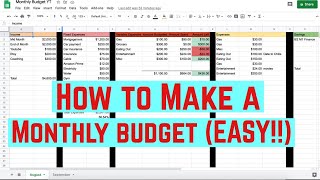
You will fill in the setup tabs of a budget spreadsheet so the monthly budgets, annual dashboard and bill calendar work together. It suits anyone starting with a ready-made template in Google Sheets or Excel 365. You need the spreadsheet file and your income and expense figures.
YouTube video: How to Set Up the Annual & Monthly Budget Spreadsheet | Google Sheets & Excel
YouTube’s video details do not confirm captions. Check CC in the player for available tracks.
- Video length
- 2 min 5 s
- Time to do it
- 20 minutes
- Difficulty
- Easy
- Steps
- 7
What you need
Steps
Open the spreadsheet in Google Sheets or Excel 365 and go to the setup tab.
Choose your country, currency, starting month and starting year from the dropdowns.
Add your income categories, then your expense categories, in the category lists.
Add your bill categories, debt categories and savings categories in the same lists.
Open the Recurring Transactions tab and enter your regular income, bills and subscriptions with their amounts and dates.
Go to the monthly budget tabs and assign amounts to each category for the month.
Check the annual dashboard, bills calendar and account tracker to confirm the figures carry through.
Tips and common mistakes
Enter every recurring item once on the Recurring Transactions tab so you do not retype it each month.
Use the exact currency and starting month, since the monthly tabs and dashboard depend on them.
Keep category names short and consistent so the dashboard totals stay clean.
Questions
Do I need Excel to use the spreadsheet?
No. It works with Google Sheets and Excel 365, so you can pick either one.
What should I fill in first?
Start with country, currency, month and year, then add your categories before entering amounts.
Where do regular bills go?
Add them to the Recurring Transactions tab with their amounts and dates.
The notes are drafted automatically from video details and general task knowledge. How the guide was prepared
Report a correction