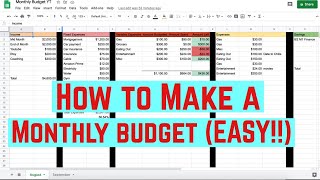
You will build a basic budget tracker in Google Sheets that lists income and expenses, sorts spending into categories with a dropdown, and totals each category automatically. It suits anyone who wants a clear monthly overview without manual math. You only need a free Google account and a blank spreadsheet.
YouTube video: Simple Budget Template in Google Sheets | FULL TUTORIAL
YouTube’s video details do not confirm captions. Check CC in the player for available tracks.
Choose a chapter (9)
- Video length
- 5 min 53 s
- Time to do it
- 20 minutes
- Difficulty
- Easy
- Steps
- 8
What you need
Steps
Open Google Sheets and create a blank spreadsheet. Name it something like Monthly Budget.
Add column headers in row 1: Description, Category, Amount for expenses, and a separate column for income.
Select the Category column, open Data > Data validation, choose Dropdown, and add your categories such as Rent, Bills, Food, Wants and Savings.
In a cell below the income column, type =SUM(B4:B)-SUM(D4:D) to show what is left after expenses.
Rename the tab to the month, then right-click the tab and choose Duplicate to create a tab for each month.
Select the used range, open Format > Alternating colors, and delete any unused columns so the sheet stays clean.
Put a category name in a cell, then type =SUMIF(E4:E20, C1, D4:D20) to total spending for that category.
Enter a few sample rows and check that the leftover total and category totals update correctly.
Tips and common mistakes
Keep the category list short so the dropdown stays easy to use.
Use the same column layout on every monthly tab so formulas copy over cleanly.
Enter expenses as positive numbers and let the subtraction formula handle the math.
Update the sheet weekly instead of saving all receipts for month end.
Questions
Do I need to pay for Google Sheets?
No. A free Google account gives you Google Sheets in the browser and on mobile.
What does the SUMIF formula do?
It adds up the amounts in a range only where the category matches the one you name, so each category gets its own total.
Can I reuse the template for next year?
Yes. Duplicate the tab for each month and clear the sample rows before you start entering real figures.
The notes are drafted automatically from video details and general task knowledge. How the guide was prepared
Report a correction