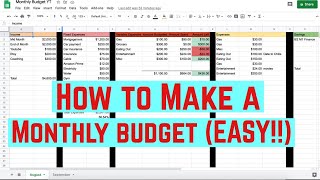
You will build a working budget in Google Sheets from a blank file. You set up income and expense categories, add formulas to total them, and format the sheet so it is easy to read. It suits beginners with a free Google account and no spreadsheet experience.
YouTube video: Simple Budget Spreadsheet in Google Sheets | No Experience Needed
YouTube’s video details do not confirm captions. Check CC in the player for available tracks.
Other videos for this task
- How to build a simple budget spreadsheet in Google Sheets 19:04 · 8 written steps
Choose a chapter (6)
- Video length
- 14 min 34 s
- Time to do it
- 20 minutes
- Difficulty
- Easy
- Steps
- 8
What you need
Steps
Open Google Sheets and create a blank spreadsheet. Name it something like Monthly Budget by clicking Untitled in the top left.
In row 1, type your column headers: Category, Expected Amount, Actual Amount and Difference. Bold the header row.
List your expense categories down column A, such as Rent, Groceries, Transport and Utilities. Leave a row at the top for income.
Enter your expected amount for each category in column B. This is what you plan to spend.
Add your take-home pay in the income row. In a cell below, use =SUM() to total your income and another =SUM() to total your expenses.
In the Difference column, subtract the actual amount from the expected amount for each row, for example =B2-C2.
Enter your real spending in the Actual Amount column as the month goes on. The Difference column updates on its own.
Select your data and use Format, then Bold and borders to make the sheet easier to read. Freeze the header row with View, then Freeze, then 1 row.
Tips and common mistakes
Type a formula starting with = or Sheets treats the entry as plain text.
Use the SUM function instead of adding cells by hand so rows can be added later.
Keep category names short so columns stay readable on a phone.
Questions
Do I need to pay for a template?
No. You can build the whole budget from a blank sheet using basic formulas like SUM and subtraction.
How often should I update the actual amounts?
Update them once a week or after each purchase so the Difference column stays accurate.
Can I use this on my phone?
Yes. The Google Sheets app opens the same file, though typing formulas is faster on a computer.
The notes are drafted automatically from video details and general task knowledge. How the guide was prepared
Report a correction