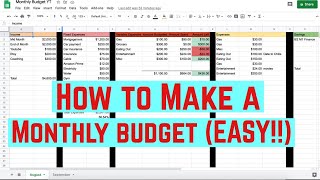
You will build a basic monthly budget tracker in Google Sheets with income and expense columns, SUM formulas and conditional formatting. It suits beginners who want to track spending without extra apps. You only need a free Google account and a blank spreadsheet.
YouTube video: How To Make a Simple Budget Tracker in Google Sheets
Captions are available. Use CC in the YouTube player.
Choose a chapter (6)
- Video length
- 8 min 38 s
- Time to do it
- 15 minutes
- Difficulty
- Easy
- Steps
- 7
What you need
Steps
Open Google Sheets and create a blank spreadsheet. Name it something like Monthly Budget.
In row 1, add headers: Category, Planned, Actual and Difference. List income rows first, then expense rows below.
Add a Total row under the income block and another under the expenses. Use =SUM() over the Planned and Actual columns.
Add a Balance row that subtracts total expenses from total income, for example =B12-B24.
Bold the header row, set column widths and add a light fill colour to the totals so they stand out.
Select the Difference column and open Format, then Conditional formatting. Add a rule so negative values turn red and positive values turn green.
Enter your real figures for the month and check that the balance updates as you type.
Tips and common mistakes
Type each formula once and copy it down the column instead of retyping it in every cell.
Keep category names short so the sheet stays readable on a phone.
Save a copy of the blank sheet as a template so you can reuse it each month.
Questions
Do I need to pay for Google Sheets?
No. A free Google account gives you Google Sheets in the browser and the mobile app.
Can I use this on my phone?
Yes. The same sheet opens in the Google Sheets app, though formatting is easier on a computer.
How do I start a new month?
Duplicate the tab, clear the Actual column and keep the formulas and formatting in place.
The notes are drafted automatically from video details and general task knowledge. How the guide was prepared
Report a correction