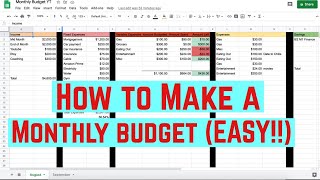
Build a simple monthly budget in Google Sheets and use Claude AI to suggest categories, formulas and layout. It suits beginners who want a quick, clear overview of income, expenses and savings without complex financial planning. You need a free Google account and access to Claude.
YouTube video: How to Create a Monthly Budget in Google Sheets with Claude AI in 2026
YouTube’s video details do not confirm captions. Check CC in the player for available tracks.
- Video length
- 1 min 31 s
- Time to do it
- 20 minutes
- Difficulty
- Easy
- Steps
- 8
What you need
Steps
Open Google Sheets and create a blank spreadsheet. Name it Monthly Budget and add a tab called Budget.
In row 1, type your headers: Category, Planned, Actual and Difference.
List your income rows first, such as salary and side work, then list expense rows like rent, food, transport and savings.
Open Claude and ask it to suggest a simple monthly budget category list for your situation. Paste the reply into your sheet.
Ask Claude for a formula that subtracts Planned from Actual in the Difference column, then paste it into the first row and drag it down.
Add a total row at the bottom using =SUM() for the Planned and Actual columns.
Add a balance line that subtracts total expenses from total income so you can see what is left.
Fill in your real figures for the month and check that the totals and balance match your own maths.
Tips and common mistakes
Always check AI-generated formulas yourself before trusting the totals.
Keep categories broad at first so the sheet stays easy to update each month.
Save a copy of the blank sheet as a template so you can reuse it.
Update the Actual column weekly instead of waiting until month end.
Questions
Do I need a paid Claude plan?
No. The free Claude chat is enough to suggest categories and formulas. You only paste the results into Sheets.
Can I use ChatGPT instead of Claude?
Yes. Any AI chat that writes spreadsheet formulas works the same way. Check each formula before relying on it.
How do I reuse the budget next month?
Make a copy of the sheet, clear the Actual column and keep the categories and formulas in place.
The notes are drafted automatically from video details and general task knowledge. How the guide was prepared
Report a correction