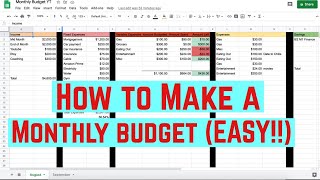
You will build a simple expense tracker in Google Sheets that runs on your phone or computer, with categories, a running total and a monthly budget check. It suits students and anyone who wants to see where their money goes without linking a bank account. All you need is a free Google account.
YouTube video: Make a FREE Expense Tracker 🤑 #DIY #Budgeting #LifeHacks #Student #Money #StreetCents
Caption availability is unknown. Check the CC control in the YouTube player.
- Video length
- 1 min 10 s
- Time to do it
- 15 minutes
- Difficulty
- Easy
- Steps
- 9
What you need
Steps
Open the Google Sheets app on your phone or go to sheets.google.com on a computer and sign in. Tap the plus button to create a blank spreadsheet.
In row 1, type these headers across the columns: Date, Item, Category, Amount, Payment. Make the row bold and freeze it so it stays on screen.
Select the Amount column, open Format, then Number, then Currency, so every figure you type shows up as money.
Type your categories in a spare column, such as Food, Transport, Rent, Phone and Fun. Keep the spelling the same everywhere.
Select the Category column and use Data, then Data validation, to turn it into a dropdown list from those category names.
Under the Amount column, add a total with =SUM(D2:D200) so you can see all your spending at a glance.
Add a second sheet called Budget. Use =SUMIF to add up each category and compare it with the amount you planned to spend.
Enter every purchase the same day you make it. Check your receipts or your banking app, then type the date, item, category and amount.
Review the sheet once a week and at month end. Fix any wrong categories, then clear the entries or start a new sheet for the next month.
Tips and common mistakes
Log spending the same day, because waiting a week makes it easy to forget small buys.
Keep the tracker manual and never type your card or bank login details into the sheet.
Use the exact same category names, or your SUMIF totals will miss entries.
Add a Notes column for one-off costs like gifts or repairs so your monthly totals still make sense.
Questions
Is the tracker really free?
Yes. Google Sheets is free with a Google account, and you build the whole tracker yourself, so there is no subscription or app purchase.
Do I need to connect my bank account?
No. You type each purchase in by hand, which keeps the tracker separate from your or your parents' bank accounts.
Can I use Excel or another app instead?
Yes. The same headers, currency format and SUM formulas work in Excel, Numbers or free alternatives like LibreOffice Calc.
The notes are drafted automatically from video details and general task knowledge. How the guide was prepared
Report a correction