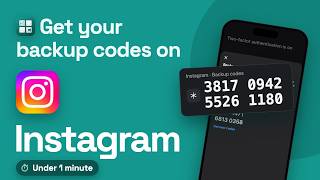
How to Create Instagram Backup Codes (Easy Security Guide!), by Byte Barrier on YouTube. 1 min 12 s.
- Video length
- 1 min 12 s
- Time to do it
- 5 minutes
- Difficulty
- Easy
- Steps
- 7
What you need
Steps
Open the Instagram app and tap your profile picture in the bottom right corner to reach your profile.
Tap the three-line menu in the top right, then tap Settings and privacy.
Tap Accounts Center at the top of the list, then tap Password and security.
Tap Two-factor authentication and choose the Instagram account you want codes for.
Tap Additional methods, then tap Backup codes.
Tap Get backup codes and confirm with your password or a code from your authenticator app.
Copy the codes into a password manager or write them on paper, then tap Done to close the screen.
Tips and common mistakes
Each code works only once, so cross it off after you use it.
Generate a new set of codes before you run out, since old ones stop working.
Keep the codes somewhere other than the phone you log in with, such as a password manager or a locked drawer.
Backup codes only appear after two-factor authentication is switched on, so turn that on first.
Questions
Where do I find backup codes in Instagram?
They sit under Settings and privacy, then Accounts Center, Password and security, Two-factor authentication, Additional methods and Backup codes. The option only shows once two-factor authentication is on.
Do Instagram backup codes expire?
They stay valid until you use them or generate a new set. Generating new codes usually cancels the old ones, so save the latest list.
What if I lose my backup codes?
Open the same menu and generate a new set while you are still logged in. If you are locked out, use Instagram's login help page to prove your identity.
This guide was drafted from the video's details and general task knowledge. It has not been checked against the full video. Check the video and relevant product instructions before following a procedure. Report a correction.