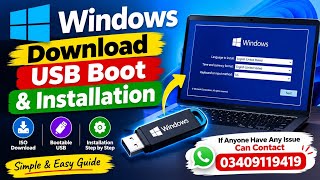
You will download the Windows 11 ISO, write it to a USB flash drive with Rufus, set your PC to boot from that drive and run a clean install. It suits anyone reinstalling Windows on a compatible PC or laptop. You need an 8GB or larger USB drive, and its existing data will be erased.
YouTube video: Windows 11 26H2 Download and Install | Create Bootable USB with Rufus
YouTube’s video details do not confirm captions. Check CC in the player for available tracks.
- Video length
- 3 min 42 s
- Time to do it
- 1 hour
- Difficulty
- Medium
- Steps
- 9
What you need
Steps
Back up the files on your USB drive and on the PC you plan to wipe. Creating the bootable USB erases everything on the drive.
Download the Windows 11 ISO file from Microsoft. Check that version 26H2 is officially available before you download it.
Download Rufus from its official site and open it. No installation is needed.
Plug in the USB drive and select it under Device in Rufus. Pick the Windows 11 ISO under Boot selection.
Keep the default partition scheme and file system, then click Start. Confirm the warning that the drive will be erased and wait for it to finish.
Restart the PC and open the BIOS or UEFI settings. Set the USB drive as the first boot device, then save and exit.
Boot from the USB drive. Choose your language and keyboard, then click Install now.
Pick the installation type. Choose Custom to wipe a drive or Upgrade to keep your files, then follow the prompts and let the files copy.
When the PC restarts, remove the USB drive so it boots from the internal disk. Finish the setup screens for region, account and privacy.
Tips and common mistakes
Use a 16GB drive if you can, since some Windows images are too large for an 8GB stick.
Rufus wipes the whole USB drive, so move any files off it first.
If the PC ignores the USB drive, check that Secure Boot and the boot order in BIOS or UEFI are set correctly.
Keep the PC plugged in during the install so it does not lose power.
Questions
Will I lose my files on the PC?
A Custom install wipes the selected drive, so back up anything you want to keep first. The Upgrade option keeps your files and apps.
Do I need a product key?
Windows 11 usually activates automatically on a PC that already had a valid license. Otherwise you can enter a key during or after setup.
Why does the PC not boot from the USB drive?
The boot order in BIOS or UEFI is probably wrong, or the USB was not written correctly. Recheck both and try again.
The notes are drafted automatically from video details and general task knowledge. How the guide was prepared
Report a correction