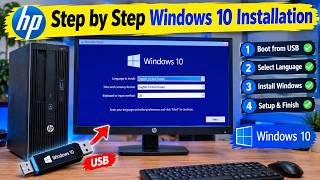
You will check your PC against the Windows 11 system requirements, make a bootable USB drive, and run the setup until you reach the desktop. It suits anyone building or setting up a new PC or laptop. You need a USB drive with at least 8 GB and a working internet connection.
YouTube video: The Easiest Way to Install Windows 11 on Your New PC
YouTube’s video details do not confirm captions. Check CC in the player for available tracks.
Other videos for this task
- How to install Windows 11 on a new PC from a USB drive 7:13 · 10 written steps
- Video length
- 4 min 51 s
- Time to do it
- 1 hour
- Difficulty
- Medium
- Steps
- 9
What you need
Steps
Check your hardware against the official Windows 11 system requirements, including 64-bit CPU, 4 GB RAM, 64 GB storage and TPM 2.0. This avoids errors during setup.
On a working computer, download the Windows 11 installation media tool from Microsoft's website and run it.
Plug in the USB drive and choose the option to create installation media for another PC. Pick your language and edition.
Select the USB drive as the target and let the tool write the files. This erases everything on the drive.
Plug the USB drive into the new PC and turn it on. Open the boot menu, often F12, F2 or Del, and pick the USB drive.
Choose your language and keyboard layout, then click Install now.
Enter a product key if you have one, or click I don't have a product key to activate later.
Pick the Custom install option, select the drive where Windows should go, and confirm the partition.
Let the files copy and the PC restart. Follow the on-screen prompts to set your region, network and account until you reach the desktop.
Tips and common mistakes
Back up any data on the target drive first, since a custom install wipes the selected partition.
Use a USB 3.0 drive if you can, as the setup runs much faster than on an old USB 2.0 stick.
Keep the PC plugged into power during the whole install so it does not shut off mid-copy.
Questions
Can I install Windows 11 without a product key?
Yes. Click I don't have a product key during setup and activate Windows later from Settings once you have a key.
Will this erase my files?
A custom install wipes the partition you select. Back up anything you want to keep before you start.
What if the PC does not boot from the USB drive?
Check the boot order in the BIOS or UEFI settings and make sure the USB drive is listed first, or use the one-time boot menu key for your PC brand.
The notes are drafted automatically from video details and general task knowledge. How the guide was prepared
Report a correction