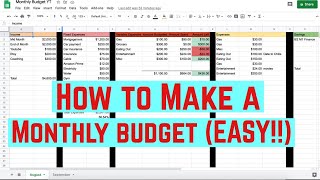
Set up a monthly budget in Google Sheets with separate sections for income, savings, debt, bills, subscriptions and variable expenses. You add transactions as they happen and compare your actual spending to your plan. It suits anyone who wants to plan money at the start of the month instead of reviewing it at the end.
YouTube video: Monthly Budget Spreadsheet - QUICK TOUR - How to track your money using a Google Sheets Spreadsheet
YouTube’s video details do not confirm captions. Check CC in the player for available tracks.
Other videos for this task
- How to build a monthly budget spreadsheet in Google Sheets 31:13 · 8 written steps
- How to build a monthly budget spreadsheet in Google Sheets 23:13 · 7 written steps
- Video length
- 12 min 30 s
- Time to do it
- 45 minutes
- Difficulty
- Easy
- Steps
- 9
What you need
Steps
Open Google Sheets and create a blank spreadsheet. Name it Monthly Budget and add a tab for each section: Income, Savings, Debt, Bills, Subscriptions and Variable Expenses.
In the Income tab, list each income source in its own row with the expected amount and the date you receive it. Add a total row at the bottom.
In the Bills tab, list every fixed bill with its amount and due date. In the Subscriptions tab, list each recurring service and its monthly cost.
In the Savings and Debt tabs, set a target amount for each goal or balance and note the payment you plan to make this month.
In the Variable Expenses tab, list categories like groceries, fuel and eating out, and write a planned amount next to each one.
Add an Actual column next to each planned amount. When you spend or receive money, type the real figure into that column right away.
Create a Summary tab and use formulas such as =SUM(Income!B2:B10) to pull totals from each section. Compare planned and actual totals side by side.
Build a simple chart from your Summary totals with Insert > Chart so you can see where your money went.
At the end of the month, review the gaps between planned and actual amounts, then adjust next month's figures in each tab.
Tips and common mistakes
Log each transaction the day it happens so the actual amounts stay accurate.
Keep one category per row so the summary formulas stay simple.
Round amounts to whole numbers to make the sheet easier to read.
Questions
Do I need to pay for a template?
No. You can build the whole budget yourself in a free Google Sheets file using the six sections described.
How often should I update the sheet?
Add transactions as they happen and review the totals once a week so you can still change your plan during the month.
Can I use Excel instead?
Yes. The same tabs and SUM formulas work in Excel, though the menu names differ slightly.
The notes are drafted automatically from video details and general task knowledge. How the guide was prepared
Report a correction