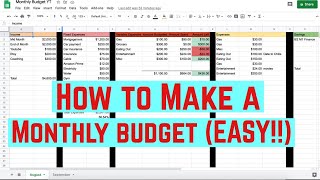
Build a colorful budget tracker in Google Sheets that covers income, bills, expenses, savings and debt on one dashboard. It suits beginners who want a free, custom system instead of a paid template. You only need a Google account and a blank spreadsheet.
YouTube video: How to Build Your Own Budget Tracker | Step-by-step Tutorial
YouTube’s video details do not confirm captions. Check CC in the player for available tracks.
Choose a chapter (9)
- Video length
- 40 min
- Time to do it
- 40 minutes
- Difficulty
- Medium
- Steps
- 7
What you need
Steps
Open Google Sheets and create a blank spreadsheet. Name it Budget Tracker and pick a color theme for the tabs and headers.
Build the grid layout. Set column widths and row heights so the dashboard and category sections have room to sit side by side.
Create the dashboard sections: summary boxes for income, bills, expenses, savings and debt, each with a total cell.
Add the category sections below the dashboard. List your income sources, bills, expense categories, savings goals and debts as rows.
Create the transaction section. Add columns for date, description, category and amount so each entry can be logged.
Add charts and formulas. Use SUMIF to total each category and link those totals to the dashboard boxes.
Apply final design touches: borders, fill colors and number formats for currency, then check that each total updates when you add a test transaction.
Tips and common mistakes
Enter a few sample transactions first to confirm your formulas point at the right ranges.
Use data validation on the category column so every transaction matches a category row.
Keep one sheet for transactions and let the dashboard only read from it, so totals stay accurate.
Questions
Do I need to pay for a template?
No. You can build the whole tracker from a blank Google Sheets file. The creator offers optional templates, but the tutorial shows the free build.
Can I use this in Excel?
The steps use Google Sheets menus and functions. Excel has similar SUMIF formulas, but the layout and menu names will differ.
How do I keep totals correct?
Log every transaction in the transaction section and let formulas total the categories. Do not type totals into the dashboard by hand.
The notes are drafted automatically from video details and general task knowledge. How the guide was prepared
Report a correction