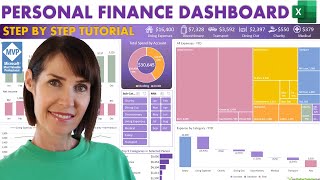
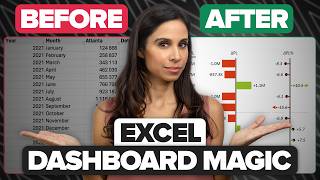
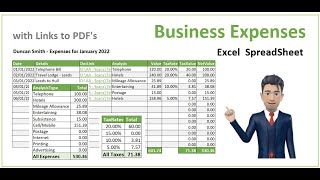
Create a Excel Dashboard in 2 Minutes Using Claude AI⭐, by StraightOuttaKapston on YouTube. 2 min 40 s.
- Video length
- 2 min 40 s
- Time to do it
- 15 minutes
- Difficulty
- Easy
- Steps
- 8
What you need
Steps
Open Excel and lay out your raw data in one plain table. Use columns for date, category, description, budgeted amount and actual amount, with one row per transaction.
Open Claude AI and paste the master prompt. Describe your sheet name, exact column headings and the KPI cards and charts you want, so the answer matches your file.
Ask Claude to write the layout VBA module. Copy the code into a plain text file and save it with a.bas extension.
Save the workbook as.xlsm so it can hold macros. Press Alt+F11 to open the VBA editor, choose File then Import File, pick the layout.bas file and run it.
Import the charts module the same way and run it. The macros create the chart objects and link them to your data range.
Check the finished dashboard. Nudge any overlapping KPI cards or charts, then add a button that reruns the macros so you can refresh in one click.
Add a few new rows of budget data and run the refresh macro. Confirm the totals, charts and KPI cards update without manual editing.
Keep the prompt and both.bas files. When you want a change, tell Claude exactly what to adjust and import the revised module instead of rebuilding from scratch.
Tips and common mistakes
Enable macros for the file or store the workbook in a Trust Center trusted location, or Excel blocks the code without warning.
The generated code is VBA, so open the.xlsm file in Excel desktop, not Google Sheets or Drive preview.
Save a copy of your workbook before running a new macro so you can roll back if the layout goes wrong.
Name your data columns exactly as you described them in the prompt, or the code will point at empty ranges.
Questions
Can I build the same dashboard in Google Sheets?
No. The code Claude writes here is VBA, which only runs in Excel desktop. Google Sheets uses Apps Script, a different language.
Do I need to know VBA to do this?
No. You paste the prompt, import the.bas files and run the macros. Reading the code helps when you want small tweaks later.
Is it safe to run AI-generated macros?
Treat them like any downloaded file. Read the code or test it on a copy of your workbook first, and only run files and prompts you trust.
This guide was drafted from the video's details and general task knowledge. It has not been checked against the full video. Check the video and relevant product instructions before following a procedure. Report a correction.