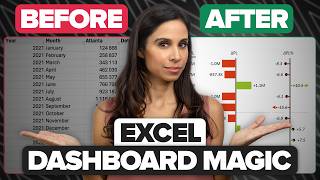
Interactive Personal Finance Dashboard with FREE EXCEL TEMPLATE, by MyOnlineTrainingHub on YouTube. 41 min 58 s.
- Video length
- 41 min 58 s
- Time to do it
- 1 hour
- Difficulty
- Medium
- Steps
- 10
What you need
Steps
Lay out your data on one sheet with a row per transaction. Include date, category, subcategory, description and amount, with no blank rows or merged cells.
Build the headline figures at the top using SUMIFS to total income, expenses and balance. Add small images or icons next to each figure.
Insert a doughnut chart from your category totals to show the share of spending each category takes.
Add a dual column chart that puts budget and actual spend side by side for each category, so overspend stands out.
Create a line chart of monthly totals to show how your spending moves over the year.
Add a treemap chart to break spending down from category into subcategory in one view.
Insert a waterfall chart that starts with income and subtracts each expense group to reach your closing balance.
Rank your top 5 spending categories with formulas, then apply conditional formatting data bars to show their size.
Add slicers for category and month so you can filter every chart on the sheet with one click.
Refresh the dashboard when new data arrives, using Refresh All or the one-click update method shown.
Tips and common mistakes
Convert your data range to an Excel Table with Ctrl+T so formulas and charts pick up new rows automatically.
Keep category names identical everywhere, since a typo creates a separate slice in your charts.
Dynamic chart labels that read from a cell keep titles correct when a slicer changes the selection.
Treemap and waterfall charts need Excel 2016 or later, so older versions will not show those options.
Questions
Can I build this dashboard in Google Sheets?
Not fully. Google Sheets has no treemap or waterfall chart type, and slicers work differently, so you would need to swap those visuals for other charts.
Do I need to know pivot tables?
No. The dashboard uses SUMIFS formulas and regular charts, so basic formula knowledge is enough.
How often should I update the figures?
Once a month works for most people. Paste in the new transactions, refresh, and the charts and headline figures update.
This guide was drafted from the video's details and general task knowledge. It has not been checked against the full video. Check the video and relevant product instructions before following a procedure. Report a correction.