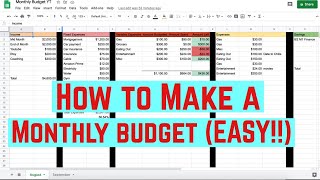
You will set up a rolling 12-month budget in Google Sheets, with one tab per month, expected and actual columns, and an annual summary. It suits anyone who wants income, bills, savings and debt payments in one place. You need a free Google account and a few recent bank statements.
YouTube video: Premium Annual Monthly Budget Tutorial | Google Sheets (Beginner-Friendly)
Caption availability is unknown. Check the CC control in the YouTube player.
- Video length
- 29 min 26 s
- Time to do it
- 30 minutes
- Difficulty
- Easy
- Steps
- 10
What you need
Steps
Open Google Sheets, start a blank spreadsheet and give it a name like 2026 Budget. Add 12 tabs at the bottom, one for each month, in calendar order.
Choose your start month, start year and currency. Select the money cells and go to Format, then Number, then Currency so all amounts display the same way.
On each month tab, set up two money columns: one for the expected amount and one for the actual amount. Leave a spare column for notes.
Add rows in this order: income, extra funds, bills, variable expenses, savings and extra debt payments. Keep savings and debt as their own lines, not leftovers.
Enter your expected income at the top of the month tab. Add each fixed bill with its due date and amount, using last month's statements as your guide.
Estimate variable costs like groceries, fuel and eating out from past statements. Put a spending cap in the expected column so the total is realistic.
Subtract every planned amount from your income to get the amount left to budget. Adjust the numbers until that figure reaches zero.
During the month, type real spending into the actual column. Compare it with the expected column to see which categories ran over.
Build an annual summary tab that pulls totals from each month, for example with =SUM(January!B2:B20). Use it to compare planned and actual across the year.
Make a bills calendar tab: list each bill under its due date and mark it paid once it clears your account, so nothing is missed.
Tips and common mistakes
Round every amount to whole numbers so the totals are quick to read and check.
Leave a small buffer line for one-off costs like car repairs or gifts, or the plan will break in the first month.
Update actuals weekly rather than at month end, while you still remember what each payment was.
Questions
Do I need to buy a template to do this?
No. A blank Google Sheets file with 12 month tabs and expected and actual columns covers the same job. Templates save time but are optional.
What is the amount left to budget?
It is your income minus every planned amount. When it hits zero, every pound or dollar has a job, which is the point of a zero-based budget.
How do I carry numbers over to the next month?
Copy the expected column into next month's tab and adjust it. Keep actuals blank until that month starts so old figures do not mix in.
The notes are drafted automatically from video details and general task knowledge. How the guide was prepared
Report a correction