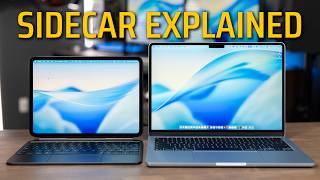
Sidecar lets you use an iPad as a second, touch-friendly display for a Mac, which is handy for controlling Logic Pro's mixer and plugins with your finger. It suits anyone with a compatible Mac and iPad who wants extra screen space. Both devices need to be signed in to the same Apple ID.
YouTube video: TOUCH SCREEN iPad + Logic Pro Mac?
Caption availability is unknown. Check the CC control in the YouTube player.
Choose a chapter (6)
- Video length
- 7 min 48 s
- Time to do it
- 10 minutes
- Difficulty
- Easy
- Steps
- 7
What you need
Steps
On your Mac, click the Control Center icon in the menu bar and choose Display. This is where Sidecar lives.
In the Display menu, look for your iPad under the Sidecar or link options and select it to connect.
On the iPad, make sure Wi-Fi and Bluetooth are on and the device is unlocked. Keep it near the Mac.
Wait for the iPad to show the Mac desktop as a mirrored or extended display.
Open System Settings on the Mac, go to Displays, and choose how the iPad screen is arranged next to your main display.
Drag windows such as the Logic Pro mixer or a plugin onto the iPad screen.
Tap and drag on the iPad to control Logic Pro directly with touch.
Tips and common mistakes
If the iPad does not appear, check that both devices use the same Apple ID and that Wi-Fi and Bluetooth are on.
You can connect with a cable instead of wirelessly for a steadier connection.
Keep the iPad plugged in for longer sessions so the battery does not run down.
Questions
Does Sidecar need a cable?
No. It works wirelessly over Wi-Fi and Bluetooth, but you can use a cable for a more stable connection.
Can I use the iPad as the only screen?
Sidecar is designed as a second display, so keep your Mac's main screen connected and use the iPad alongside it.
Will touch work in every app?
Touch input works across the Mac desktop, but some apps are easier to control with a mouse or trackpad.
The notes are drafted automatically from video details and general task knowledge. How the guide was prepared
Report a correction