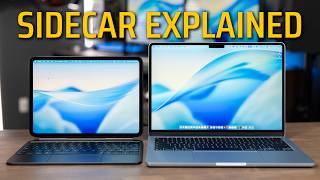
Turn a supported iPad into a desktop setup by connecting it to an external monitor and adding a keyboard and mouse. You get extended screen space with resizable windows. It suits anyone with an M-series iPad Air or Pro, or the new iPad mini on iPadOS 27.2.
YouTube video: iPad as a Desktop Computer: Everything You Need to Know
Caption availability is unknown. Check the CC control in the YouTube player.
Choose a chapter (5)
- Video length
- 9 min 34 s
- Time to do it
- 15 minutes
- Difficulty
- Easy
- Steps
- 8
What you need
Steps
Check your iPad model first. M-series iPad Air and iPad Pro models support an external display, and the new iPad mini A20 Pro adds support with iPadOS 27.2. Update to iPadOS 27.2 or later before you start.
Connect the monitor to your iPad with a USB-C cable or the right adapter. Use a cable rated for video output, not a charge-only cable.
Wait for the iPad to detect the screen. If nothing appears, unplug and replug the cable, or try another port on the monitor.
Open Settings and go to Display. Choose how the two screens work: mirror the iPad or extend it as a second display.
Arrange the displays. Drag the screen icons so they match where the monitor sits on your desk, then set the monitor resolution.
Pair your keyboard and mouse. A Magic Keyboard snaps on, or pair a Bluetooth keyboard and mouse from Settings, Bluetooth.
Open apps and drag windows between the iPad screen and the monitor. Resize windows by dragging their edges, and use multitasking to keep several open.
Set up a work session and test it. Move a document to the monitor, keep chat on the iPad, and check that the mouse crosses between screens smoothly.
Tips and common mistakes
Use a cable or adapter that supports video output, since many USB-C cables only carry power and data.
Place the monitor at eye level and keep the iPad on a stand so you are not looking down at it all day.
Check the monitor refresh rate in Display settings; the iPad mini supports up to 4K at 60Hz.
Some apps may not resize well on the external screen, so test your main work apps before relying on the setup.
Questions
Can the iPad screen be turned off while using the monitor?
Yes, the iPad can run with its own screen off while the external display stays active. Check the Display settings for the option on your model.
Does the iPad charge while connected to a monitor?
It can charge if the monitor or adapter passes power through. Use a powered adapter or a monitor with USB-C power delivery to keep the battery topped up.
Which iPads support an external display?
M-series iPad Air and iPad Pro models work, and the new iPad mini A20 Pro supports it on iPadOS 27.2. Older iPads may only mirror the screen.
The notes are drafted automatically from video details and general task knowledge. How the guide was prepared
Report a correction