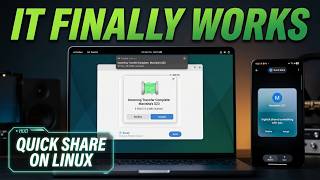
How To Wirelessly Transfer Photos & Videos From Samsung Galaxy S26 / S26 Ultra To Windows PC, by WebPro Education on YouTube. 5 min 8 s.
- Video length
- 5 min 8 s
- Time to do it
- 10 minutes
- Difficulty
- Easy
- Steps
- 6
What you need
Steps
Connect your Galaxy S26 and the Windows PC to the same Wi-Fi network, then turn on Bluetooth on both devices so Quick Share can find them.
On the PC, install the Quick Share app for Windows from android.com/quick-share, then sign in with the same Google account you use on the phone.
On the phone, open Gallery, tap and hold a photo or video, then tap Share. Select more items if you need them.
Tap Quick Share, pick your PC name from the list, then tap Send. Accept the transfer if the PC shows a prompt.
Wait for the transfer to finish, then open File Explorer on the PC and check the Downloads folder, where Quick Share saves files by default.
For automatic copies, install OneDrive or Google Photos on the phone and turn on photo backup over Wi-Fi.
Tips and common mistakes
Use a private home network, since guest Wi-Fi and VPNs often stop the devices from seeing each other.
Keep the phone screen on and both devices awake when sending large videos.
If Quick Share cannot find the PC, pair Phone Link instead and save photos from its Photos tab.
Questions
Do I need a USB cable?
No. Quick Share and cloud backup both work over Wi-Fi. Keep a cable as a fallback for very large video files.
Where do the transferred files go?
They land in the Downloads folder on the PC by default. You can change the save location in the Quick Share settings.
Can I send a whole album at once?
Yes. Open the album in Gallery, select all the items, then share them together through Quick Share.
This guide was drafted from the video's details and general task knowledge. It has not been checked against the full video. Check the video and relevant product instructions before following a procedure. Report a correction.