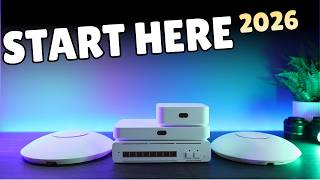
You will unbox the UniFi Express 7 units, adopt them in the UniFi app, and build a mesh network across your home. It suits anyone who wants WiFi 7 coverage in a house or garden. You need the UniFi app and a phone or tablet.
YouTube video: UniFi Express 7: The Whole Home WiFi 7 Mesh Tested (MLO, 10 Gig, Range)
YouTube’s video details do not confirm captions. Check CC in the player for available tracks.
Choose a chapter (10)
- Video length
- 11 min 38 s
- Time to do it
- 20 minutes
- Difficulty
- Easy
- Steps
- 8
What you need
Steps
Unbox the units and note the power adapter and any cables in the box.
Install the UniFi app on your phone and sign in to your Ubiquiti account.
Power on the first Express 7 and follow the app prompts to adopt it as your main unit.
Power on the second unit near the first and adopt it in the app to join the mesh.
Let the units form an MLO link across 5GHz and 6GHz for the mesh connection.
Place units around the house for good signal, then test roaming between rooms.
Run a speed test from a connected device to confirm throughput.
Take a unit to the garage or garden on a battery bank to check range.
Tips and common mistakes
Use a wired backhaul where you can, since it beats wireless backhaul for speed.
Keep units out of closed metal cabinets to avoid weak signal.
Adopt each unit one at a time so the app can find it.
Check signal strength in the app before moving a unit far away.
Questions
Do I need a wired connection between the units?
No. The units can mesh wirelessly, but a wired backhaul gives better throughput.
What is MLO?
Multi Link Operation lets the mesh use 5GHz and 6GHz bands together for the link between units.
Can I use one unit only?
Yes, a single Express 7 works as a standalone access point, and you add more for coverage.
The notes are drafted automatically from video details and general task knowledge. How the guide was prepared
Report a correction