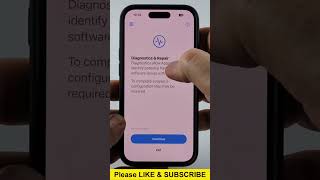
How to Enter Recovery Options on iPhone, by Gauging Gadgets on YouTube. 1 min 10 s.
- Video length
- 1 min 10 s
- Time to do it
- 10 minutes
- Difficulty
- Easy
- Steps
- 9
What you need
Steps
Back up your iPhone first if it still turns on. You can use iCloud or a computer, because a restore later may erase everything on the phone.
Plug the iPhone into your computer with a USB cable. Use a port directly on the computer, not a USB hub.
Open Finder on a Mac running macOS Catalina or later, or open iTunes on Windows or an older Mac.
Press and quickly release the volume up button, then press and quickly release the volume down button.
Press and hold the side button. Keep holding it while the Apple logo appears and until you see the recovery mode screen with a laptop icon.
Let go of the side button once that screen shows. A message on your computer says there is a problem with the iPhone.
Click Update to reinstall iOS and keep your data. Wait for the download and install to finish without unplugging the cable.
If the update fails, run the steps again and choose Restore instead. This wipes the iPhone and sets it up as new.
To leave recovery mode without restoring, unplug the cable and force restart: volume up, volume down, then hold the side button until the Apple logo shows.
Tips and common mistakes
Always try Update before Restore, since Restore deletes your photos, messages and apps.
Keep the cable connected the whole time. Unplugging mid-install can leave the iPhone in a worse state.
Charge the iPhone to at least 50 percent before you start, or the install may fail.
If the recovery screen never appears, try another cable and another USB port before repeating the button sequence.
Questions
Will I lose my data in recovery mode?
Not if you choose Update, which reinstalls iOS and keeps your files. Choosing Restore erases the iPhone, so you would need a backup to get your data back.
How do I get out of recovery mode?
Unplug the cable and do a force restart: press and release volume up, press and release volume down, then hold the side button until the Apple logo appears.
Does this button combination work on all iPhones?
It works on iPhone 8 and newer, including the iPhone 17. On iPhone 7 hold the volume down button instead, and on iPhone 6s and older hold the home button.
This guide was drafted from the video's details and general task knowledge. It has not been checked against the full video. Check the video and relevant product instructions before following a procedure. Report a correction.