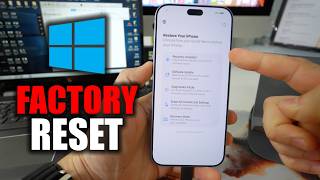
iPhone 18 Pro – How to Enter Recovery Mode, by HardReset.Info on YouTube. 9 min 11 s.
- Video length
- 9 min 11 s
- Time to do it
- 10 minutes
- Difficulty
- Easy
- Steps
- 7
What you need
Steps
Plug a USB-C data cable into your iPhone 18 Pro and the other end into your computer. Use a cable that transfers files, not a charge-only cable.
On Windows, open the Microsoft Store, search for Apple Devices and install the app. It replaces iTunes for managing your phone.
On a Mac, skip the install. Open Finder and click your iPhone in the sidebar under Locations.
The iPhone and tap Trust when the computer prompt appears. Enter your passcode if you are asked for it.
Press and release volume up, press and release volume down, then hold the side power button. Keep holding until the recovery mode screen appears.
Choose Update on the computer to reinstall iOS and keep your data, or Restore to erase the phone and set it up fresh.
To leave recovery mode without changing anything, unplug the cable and repeat the button combination until the phone boots back into iOS.
Tips and common mistakes
Charge-only USB-C cables look identical to data cables, so test with one you know transfers files.
Back up the iPhone before choosing Restore, because that option wipes everything on the device.
Keep the phone connected and the computer awake for the whole update or restore.
If the Apple Devices app shows a problem with your iPhone, reconnect with a different cable or USB port and tap Trust again.
Questions
Does entering recovery mode erase my iPhone?
No. Recovery mode itself deletes nothing. Your data is only lost if you pick Restore instead of Update.
Why does the Apple Devices app say there is a problem with my iPhone?
The usual causes are a charge-only cable, a locked phone, or a weak USB port. the phone, tap Trust and reconnect with a known data cable.
How do I get out of recovery mode?
Unplug the cable, then press volume up, volume down and hold the power button until the Apple logo shows.
This guide was drafted from the video's details and general task knowledge. It has not been checked against the full video. Check the video and relevant product instructions before following a procedure. Report a correction.