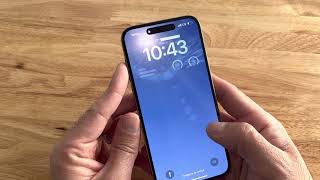
How To Fix iPhone 17 Pro Not Turning On - 2026, by Free Tech Guide on YouTube. 3 min.
- Video length
- 3 min
- Time to do it
- 20 minutes
- Difficulty
- Easy
- Steps
- 8
What you need
Steps
Plug the iPhone into a known good USB-C charger and cable. Leave it for 20 to 30 minutes, because a fully drained battery can show a black screen for a while.
Try a different cable, charger and wall socket. Look inside the USB-C port for lint or fluff and brush it out gently with a wooden toothpick or soft brush.
Force restart the phone. Press and release volume up, press and release volume down, then hold the side button until the Apple logo appears.
If the phone stays on a black screen or a frozen Apple logo, repeat the force restart two or three times. Many phones boot on the second or third try.
Connect the iPhone to your computer with a USB-C cable. Open Finder on a Mac, or the Apple Devices app on Windows, and wait for the phone to show up.
Put the phone in Recovery Mode if it still will not boot. Press and release volume up, press and release volume down, then hold the side button. Keep holding it past the Apple logo until the recovery screen appears.
Choose Update in Finder or the Apple Devices app to reinstall iOS and keep your data. Wait for the download and install to finish without unplugging the cable.
Choose Restore only if Update fails. This erases the phone, so set it up again from your iCloud or computer backup afterwards.
Tips and common mistakes
Never push metal, pins or compressed air into the USB-C port, as this can bend the contacts.
Use a certified USB-C cable and avoid cheap chargers, since weak power can leave the phone looking dead.
Update keeps your photos and apps, but Restore wipes the phone, so try Update first.
If the phone gets warm or will not charge on any cable, stop and have the battery and port checked.
Questions
Will a force restart delete anything on my iPhone?
No. A force restart only reboots the phone, so your photos, apps and settings stay exactly as they were.
How long should I charge a phone that will not turn on?
Give it at least 30 minutes on a working charger before you try anything else. A deeply drained battery often needs that long before the screen responds.
What if Recovery Mode does not appear on my computer?
Check the cable and try another USB port, then repeat the button sequence. On Windows, make sure the Apple Devices app is installed and open.
This guide was drafted from the video's details and general task knowledge. It has not been checked against the full video. Check the video and relevant product instructions before following a procedure. Report a correction.