How To Series, Remarkable: Organize And Manage Your Files, by My Deep Guide on YouTube. 6 min 53 s.
- Video length
- 6 min 53 s
- Time to do it
- 10 minutes
- Difficulty
- Easy
- Steps
- 8
What you need
Steps
Open the file browser on your reMarkable by tapping the menu icon in the top left corner of the screen.
Tap My files to see all your notebooks, PDFs and ebooks in one list.
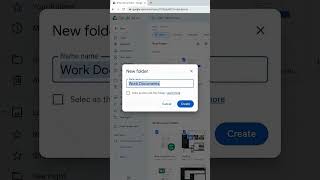
Tap the folder icon or the New folder option, then type a name such as Work or Recipes and confirm.
Press and hold a document until it is selected, then tap Move to send it into the folder you made.
Repeat for each document so related notes sit together in the same folder.
Tap a folder to open it and check that the files inside are the ones you expect.
Use the sort option to order files by name or date so the newest notes appear first.
Rename a file by pressing and holding it, choosing Rename, and typing a clear title.
Tips and common mistakes
Keep folder names short and consistent so you can find them quickly.
Move files into folders as soon as you create them instead of letting the main list grow.
Use the search field to find a document by name if you forget which folder holds it.
Questions
Can I create folders inside folders on the reMarkable?
Yes, you can nest folders to build a simple structure, such as Work followed by Projects. Keep the nesting shallow so files stay easy to find.
Does moving a file delete it from the device?
No, moving only changes which folder holds the file. The document stays on the tablet until you delete it yourself.
Can I organize files from my computer instead?
Yes, the reMarkable desktop app and cloud let you move and rename files. Changes sync back to the tablet when it connects.
This guide was drafted from the video's details and general task knowledge. It has not been checked against the full video. Check the video and relevant product instructions before following a procedure. Report a correction.