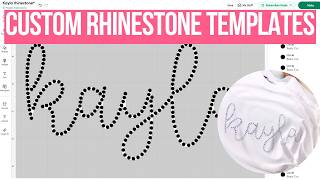
You will use the rhinestone tools in Silhouette Studio to turn a design into a template with evenly spaced circles. It suits beginners who want to cut templates on a Silhouette or Cricut. The Business Edition is needed if you want to save the file as an SVG.
YouTube video: Making Rhinestone Templates in Silhouette for Beginners
Caption availability is unknown. Check the CC control in the YouTube player.
- Video length
- 17 min 17 s
- Time to do it
- 20 minutes
- Difficulty
- Easy
- Steps
- 8
What you need
Steps
Open Silhouette Studio and create a new document. Set the page size to match your template material so the design fits.
Import or draw the design you want to make into a rhinestone template. Keep it simple for your first try.
Open the rhinestone panel from the right side toolbar. Choose your stone size, such as SS10 or SS16, from the drop-down list.
Select your design and click the rhinestone button to fill it with circles. The software places the stones along the shape.
Adjust the spacing and stone size settings until the circles sit evenly and do not overlap.
Check the filled design closely and remove any stray circles outside the shape.
If you use the Business Edition, go to File and Save As, then choose SVG so you can open the file in Cricut Design Space.
Send the file to your cutting machine and cut the template from your template material.
Tips and common mistakes
The free and basic versions of Silhouette Studio cannot save SVG files, so export is limited to the Business Edition.
Pick one stone size and stick to it for the whole design so the spacing stays consistent.
Zoom in before cutting to check that no circles touch or overlap.
Questions
Do I need the Business Edition?
Only if you want to save your template as an SVG for another machine like a Cricut. You can still design in the free version and cut on a Silhouette.
Can I use this with a Cricut?
Yes. Save the design as an SVG in the Business Edition, then upload it to Cricut Design Space and cut it there.
What stone size should I start with?
SS10 is a common size for small text and details. Try SS16 for larger, bolder designs.
The notes are drafted automatically from video details and general task knowledge. How the guide was prepared
Report a correction