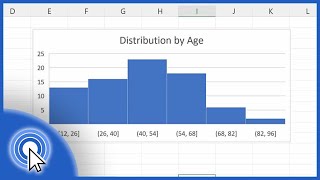
Effortlessly Create Dynamic Charts in Excel: New Feature Alert!, by Leila Gharani on YouTube. 10 min 15 s.
- Video length
- 10 min 15 s
- Time to do it
- 15 minutes
- Difficulty
- Medium
- Steps
- 9
What you need
Steps
Click any cell in your data and press Ctrl+T to turn the range into an Excel table. Rows you add later then flow into the chart automatically.
Type the department you want to chart in a spare cell, such as B2. This cell is the switch that drives the formula and the chart.
In another cell, type =FILTER(Table1[Salary],Table1[Department]=B2) and press Enter. The matching salaries spill down on their own.
Add a third argument so the formula returns text instead of an error when nothing matches: =FILTER(Table1[Salary],Table1[Department]=B2,"No matches").
Wrap the formula in SORT to control the order of the bars: =SORT(FILTER(Table1[Salary],Table1[Department]=B2,"No matches")).
Select a cell inside the spilled results and go to Insert > Column Chart. The chart sits on the spill range, so it resizes when the results change.
For a date range, add a From and a To cell and multiply the two conditions: =FILTER(Table1[Salary],(Table1[Date]>=F2)*(Table1[Date]
Insert a line chart on those results. Change the From or To date and the line redraws using only the rows in that window.
Add a new row to the table and it appears in the chart. Check that the spilled range grew to include the new row.
Tips and common mistakes
Point the FILTER criteria at a cell rather than typing the department into the formula, so you can switch charts without editing it.
Build the chart from a cell inside the spilled range, not from the whole column, so Excel follows the spill as it grows and shrinks.
Excel 2019 and earlier have no dynamic arrays, so you need the Name Manager workaround there.
If the chart shows blank space, the formula is returning empty cells or an error, so check the criteria cell and the if_empty text.
Questions
Does this work in Excel 2019?
No. Dynamic array formulas like FILTER and SORT need Microsoft 365 or Excel for the web. Older versions still need the Name Manager workaround with dynamic named ranges.
Why does my chart say No matches?
The criteria cell does not match any value in the column exactly. Check for trailing spaces, a different text case, or a number stored as text.
Can I use more than two conditions?
Yes. Put each condition in brackets, multiply them with an asterisk, and add them inside FILTER before the if_empty argument.
This guide was drafted from the video's details and general task knowledge. It has not been checked against the full video. Check the video and relevant product instructions before following a procedure. Report a correction.