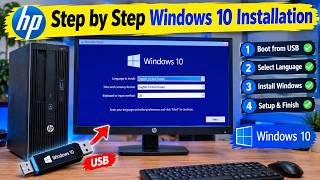
You will reset Windows 10 back to its factory state using the built-in reset option. You can choose to keep your personal files or wipe everything. It suits anyone whose PC is slow, glitchy or badly set up. Back up important files first, since a full wipe removes all data.
YouTube video: How To Factory Reset Windows 10
Captions are available. Use CC in the YouTube player.
- Video length
- 1 min 15 s
- Time to do it
- 30 minutes
- Difficulty
- Easy
- Steps
- 7
What you need
Steps
Plug your laptop into power and back up any files you cannot lose to an external drive or cloud account.
Open Settings by clicking the Start button and the gear icon, or press Windows key + I.
Go to Update & Security and select Recovery in the left menu.
Under Reset this PC, click Get started.
Choose Keep my files to remove apps and settings but keep personal files, or Remove everything for a full wipe.
Pick Cloud download or Local reinstall for the Windows image, then click Next.
Review the list of changes, click Reset, and leave the PC plugged in until it restarts.
Tips and common mistakes
A full wipe deletes every file, so copy anything important to another drive first.
The reset can take an hour or more, so keep the charger connected the whole time.
If the PC will not boot, use Advanced startup from the Recovery menu to reach the reset options.
Questions
Will I lose my files if I choose Keep my files?
No, your personal files stay, but installed apps and settings are removed and you must set up Windows again.
Can I undo a factory reset?
No. Once the reset finishes, the previous setup and any wiped files are gone, so back up before you start.
Do I need a Windows product key?
Usually not. Windows 10 reactivates itself on the same hardware after the reset.
The notes are drafted automatically from video details and general task knowledge. How the guide was prepared
Report a correction