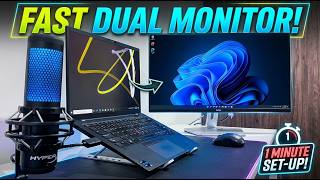
Connect an external monitor to your laptop with an HDMI or VGA cable and set Windows to extend the desktop across both screens. It suits anyone who wants more screen space for work. You need a laptop, a monitor and the right cable.
YouTube video: How to extend laptop screen to monitor Explained in Sinhala
Caption availability is unknown. Check the CC control in the YouTube player.
- Video length
- 10 min 44 s
- Time to do it
- 10 minutes
- Difficulty
- Easy
- Steps
- 8
What you need
Steps
Plug the monitor into a power socket and switch it on.
Connect one end of the HDMI or VGA cable to the laptop and the other end to the monitor.
Press the input or source button on the monitor and pick the port you used, such as HDMI or VGA.
Wait a few seconds. Windows usually detects the monitor and shows a picture on its own.
If nothing appears, press the Windows key and P together to open the display options.
Choose Extend from the list so the two screens show different parts of your desktop.
Right-click the desktop, open Display settings, and drag the screen icons to match how the monitors sit on your desk.
Set the correct resolution for each screen and click Apply, then Keep changes.
Tips and common mistakes
If the monitor stays black, check that its input source matches the cable you plugged in.
Use Extend rather than Duplicate when you want more room for windows.
A loose or damaged cable is a common reason a second screen is not detected.
Questions
What is the difference between Extend and Duplicate?
Extend makes the second screen a separate desktop area. Duplicate shows the same picture on both screens.
My laptop has no HDMI port. What can I use?
Use the VGA port if your laptop has one, or a USB to HDMI adapter that matches your laptop's USB type.
Why does Windows not see the monitor?
Try another cable or port, press the monitor's source button, and check Display settings for a Detect button.
The notes are drafted automatically from video details and general task knowledge. How the guide was prepared
Report a correction