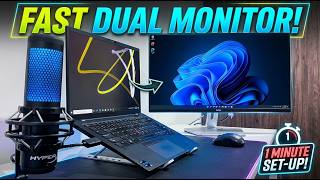
You will connect a laptop or desktop PC to a TV with an HDMI cable and set it up as a second screen in Windows or macOS. It suits anyone who wants more desktop space or a bigger display for videos and slides. All you need is a free HDMI port on both devices and the right cable.
YouTube video: How to use a TV as a second monitor with HDMI
Caption availability is unknown. Check the CC control in the YouTube player.
- Video length
- 1 min 49 s
- Time to do it
- 10 minutes
- Difficulty
- Easy
- Steps
- 10
What you need
Steps
Check both devices for HDMI ports. Most laptops from the last ten years have a full-size HDMI port, and some thin models use mini or micro HDMI, so buy the right cable or adapter before you start.
Plug one end of the HDMI cable into your laptop or graphics card and the other into a free port on the TV. Note the label next to the TV port, such as HDMI 1 or HDMI 2.
Turn the TV on and press the Input or Source button on the remote. Pick the HDMI input that matches the port you used.
On Windows, press the Windows key and P together, then choose Extend for a separate second desktop or Duplicate to mirror your laptop screen.
On a Mac, open System Settings, click Displays, then Arrange, and choose Extend display or Mirror display.
Set the resolution. In Windows go to Settings, System, Display, select the TV and pick 1920x1080 or its native resolution. On a Mac choose the scaled option that matches the TV.
Drag the numbered screen boxes in Display settings to match where the TV sits on your desk, so the mouse moves in the right direction.
If the edges of the picture are cut off, open the TV picture menu and set the aspect ratio to Just Scan, Screen Fit or 1:1 to turn off overscan.
Send sound to the TV if you want it. Right-click the speaker icon in Windows, open Sound settings and choose the TV as the output device.
For a wireless setup with no cable run, press Windows key and K to connect over Miracast, or use a wireless HDMI kit or streaming stick if your laptop supports casting.
Tips and common mistakes
Use an HDMI 2.0 cable or better if the TV is 4K, otherwise you may be capped at 30Hz and the mouse will feel laggy.
Keep passive HDMI cables under about 5 metres. Longer runs need an active or fibre cable to hold a stable signal.
Turn on Game Mode in the TV picture settings to cut input lag when you use the mouse on the big screen.
Tape down or route the cable along a wall so nobody trips over it or yanks the laptop off the desk.
Questions
Do I need a special HDMI cable?
Any standard HDMI cable works for a 1080p TV. For 4K at 60Hz, use a High Speed or Premium High Speed cable rated for HDMI 2.0.
Why does the TV say no signal?
The TV is usually on the wrong input. Press Source on the remote and pick the exact HDMI port you used, then unplug and reseat the cable.
Can I use the TV as a second monitor without a cable?
Yes, if your laptop supports Miracast or you use a wireless HDMI kit or streaming stick. Picture quality and lag are worse than a cable, so use it for video rather than gaming.
The notes are drafted automatically from video details and general task knowledge. How the guide was prepared
Report a correction