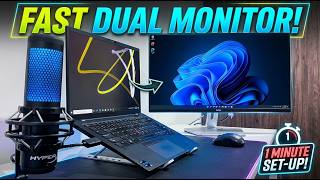
You can put your laptop screen on a TV in two ways: a wired HDMI connection or a wireless Miracast link. This guide suits Windows users who want to mirror a screen or extend the desktop for movies, slides or work. Have an HDMI cable or a USB-C to HDMI adapter ready.
YouTube video: How to Connect Laptop to TV (Wireless & HDMI)
Caption availability is unknown. Check the CC control in the YouTube player.
Choose a chapter (4)
- Video length
- 2 min 9 s
- Time to do it
- 10 minutes
- Difficulty
- Easy
- Steps
- 8
What you need
Steps
Plug one end of the HDMI cable into the laptop's HDMI port and the other end into a free HDMI input on the TV.
If your laptop only has USB-C, connect a USB-C to HDMI adapter to the laptop, then plug the HDMI cable into the adapter.
Turn on the TV and use its remote to select the HDMI input you used, such as HDMI 1 or HDMI 2.
On Windows, press Windows+P to open the display menu, then choose Duplicate to mirror the laptop screen or Extend to use the TV as a second screen.
For wireless, check that your TV supports Miracast or connect a Miracast receiver to an HDMI port.
On the laptop, press Windows+K to open the Connect panel, then pick your TV from the list of wireless displays.
If Windows asks for a PIN, enter the code shown on the TV, then allow the connection to finish.
Once connected, use Windows+P again to switch between Duplicate and Extend, or disconnect when you finish.
Tips and common mistakes
Use a cable that fits the port; a USB-C port needs an adapter or a USB-C to HDMI cable.
If the TV shows no signal, recheck the HDMI input number on the TV and reseat both cable ends.
Wireless mirroring can lag, so use HDMI for gaming or smooth video.
Keep the laptop close to the TV during Miracast setup to get a stable connection.
Questions
Do I need a cable to connect my laptop to a TV?
No. You can use a wired HDMI cable or a wireless Miracast connection if your TV supports it.
What if my laptop has no HDMI port?
Use a USB-C to HDMI adapter or a USB-C to HDMI cable, then select the correct HDMI input on the TV.
Why does my TV not appear in the Connect list?
The TV may not support Miracast. Use a Miracast receiver or an HDMI cable instead.
The notes are drafted automatically from video details and general task knowledge. How the guide was prepared
Report a correction