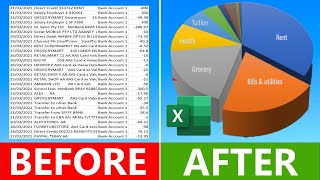
Build a FREE Advanced Expense Tracker in Google Sheets with Apps Script | Full Tutorial 2026 #crud, by Rover on YouTube. 10 min 30 s.
- Video length
- 10 min 30 s
- Time to do it
- 45 minutes
- Difficulty
- Medium
- Steps
- 10
What you need
Steps
Open Google Sheets and create a blank spreadsheet. Give it a clear name like Expense Tracker so you can find it again in Drive.
Click Extensions in the menu bar, then Apps Script. A script project opens in a new tab and is already linked to your spreadsheet.
In the script editor, keep Code.gs as the backend file and add HTML files named Form, SearchFilter, Report and Settings. Paste the matching code into each one.
Save the project, pick the setup function from the function dropdown and click Run. Approve the Google permission prompt that appears on the first run.
Switch back to the spreadsheet tab and reload the page. A custom menu with icons appears in the menu bar and five sheets are created for you.
Open the form from that menu and add a test transaction: date, category, sub-category, amount and payment method. The script assigns an ID such as TXN-0001.
Open the dashboard sheet. The KPI cards show total income, total expenses and net balance, and the line and donut charts fill in from your data.
Use the search and filter panel to narrow your list by up to six fields, for example date range, category or payment method.
Edit or delete a transaction from the list, then confirm in the dialog. The dashboard totals and charts update to match the change.
Open Settings to set your currency, payment methods and dark mode, then generate a monthly or yearly report when you need a summary.
Tips and common mistakes
Run the setup function only once. Running it again can duplicate or overwrite the sheets it creates.
Keep the sheet names exactly as the script expects, or the menu, forms and reports will fail to find your data.
Test everything on a copy of the spreadsheet first so a mistake does not damage real records.
Apps Script asks for broad permissions on the first run. Approve it only on the Google account you use for tracking.
Questions
Do I need to pay for anything?
No. Google Sheets and Apps Script are free with a Google account. The only cost is the time it takes to set up the files and paste the code.
Do I need to know JavaScript?
Not for basic use, because you paste the supplied code and run it. Basic JavaScript helps if you later want to change the form fields or the reports.
Can more than one person use the tracker?
Yes, if you share the spreadsheet with them. The script can record which Google account added each transaction, so entries stay traceable.
This guide was drafted from the video's details and general task knowledge. It has not been checked against the full video. Check the video and relevant product instructions before following a procedure. Report a correction.