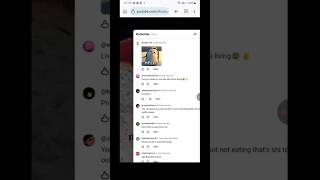
How to get GIFS in YouTube early! #tutorial #youtubeshorts #gifs, by Maxophobia on YouTube. 1 min 5 s.
- Video length
- 1 min 5 s
- Time to do it
- 5 minutes
- Difficulty
- Easy
- Steps
- 7
What you need
Steps
Open YouTube and sign in to your account. The GIF option only appears when you are logged in, so check your profile picture shows in the top corner.
Go to the video you want to comment on and scroll down to the comment section below the player.
Tap or click inside the comment box so the keyboard or cursor appears and the formatting row shows up.
Look for the GIF button in that row next to the emoji and image icons. If you do not see it, update the YouTube app and reopen the video.
Tap the GIF button and type a word or phrase into the search bar, such as hello, laughing or thumbs up.
Scroll the results, tap the GIF you want, and it will attach to your comment draft.
Check the preview, add any text you want, then tap Comment or the send arrow to post it.
Tips and common mistakes
The GIF button rolls out gradually, so a friend may have it while you do not yet.
Keep the search term short and simple. One or two words returns far better results than a full sentence.
GIFs load slowly on weak connections, so wait for the preview before you hit post.
If you are on a work or school network, the GIF library may be blocked even when the button appears.
Questions
Why is there no GIF button in my comment box?
The feature is still rolling out to accounts and regions. Update the YouTube app or refresh your browser, then sign out and back in to check again.
Can I add a GIF to a YouTube Shorts comment?
Yes, the same comment box and GIF button work under Shorts on the mobile app. Open the comments panel by tapping the comment icon first.
Can I upload my own GIF instead of searching?
The built-in picker only searches a hosted GIF library. To use your own clip, you would need to turn it into a GIF and post it as an image where that option is offered.
This guide was drafted from the video's details and general task knowledge. It has not been checked against the full video. Check the video and relevant product instructions before following a procedure. Report a correction.