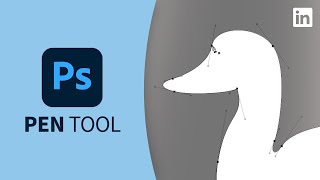
The Pen tool lets you draw precise paths with anchor points and handles, then turn them into selections, shapes or custom lines. It suits anyone cutting out objects or tracing outlines in Photoshop. You only need Photoshop open with an image loaded.
YouTube video: Learn How To Use The Pen Tool ✒ in 15 Minutes (Photoshop)
Caption availability is unknown. Check the CC control in the YouTube player.
Choose a chapter (5)
- Video length
- 15 min
- Time to do it
- 15 minutes
- Difficulty
- Easy
- Steps
- 9
What you need
Steps
Open your image in Photoshop and select the Pen tool from the toolbar, or press P. Make sure the mode in the options bar is set to Path.
Click once on the edge of your subject to place the first anchor point. Click again further along the edge to add a straight segment between the two points.
For a curved edge, click and drag instead of just clicking. The drag pulls out handles that bend the curve, and the next point continues the curve smoothly.
Keep adding points around the outline. Place fewer points on straight sections and more on tight curves. Hold Alt and drag a handle to break it if a corner needs a sharp turn.
Close the path by clicking back on your first anchor point. You now have a complete path around your subject.
Right-click the path and choose Make Selection. Set a small Feather radius such as 1 pixel, then click OK to get a marching ants selection.
To keep several paths, hold Shift and click each one with the Path Selection tool. You can then select or convert them together.
Switch the Pen tool mode to Shape in the options bar to draw filled vector shapes instead of paths. Set the fill and stroke colours before drawing.
For custom lines, choose the Pen tool in Shape mode with no fill and a stroke colour, then click and drag to draw open curved lines.
Tips and common mistakes
Zoom in closely while placing points so your curves follow the edge accurately.
Use as few anchor points as possible; extra points make the path lumpy and hard to adjust.
Hold Space while dragging a handle to move the anchor point without changing the curve.
Press Ctrl or Cmd and click the path to delete a single anchor point you placed by mistake.
Questions
What is the difference between a path and a shape in the Pen tool?
A path is an editable outline with no fill that you can turn into a selection. A shape is a filled vector layer you can recolour and resize later.
How do I fix a curve that bends the wrong way?
Hold Alt and drag the handle on that anchor point to change its direction. You can also use the Convert Point tool to reshape the curve.
Can I edit the path after making a selection?
Yes. Keep the path saved in the Paths panel, adjust the anchor points, then run Make Selection again to update it.
The notes are drafted automatically from video details and general task knowledge. How the guide was prepared
Report a correction