Split View puts two apps side by side on your iPad, so you can read a recipe and watch a video or copy notes into a document. It suits any iPad running a recent iPadOS. You only need a couple of minutes and apps that support multitasking.
YouTube video: How to Enter Split Screen on iPad - Split 2,3 & 4 Apps At Once! (iPadOS 27)
Caption availability is unknown. Check the CC control in the YouTube player.
- Video length
- 2 min 17 s
- Time to do it
- 2 minutes
- Difficulty
- Easy
- Steps
- 8
What you need
Steps
Open Settings, tap General, then Software Update, and install the latest iPadOS so the multitasking controls are available.
Open the first app you want to use. Let it fill the screen before you bring in the second one.
Swipe up slowly from the bottom edge of the screen to show the Dock, then touch and hold the icon of the second app.
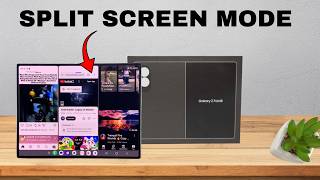
Keep your finger down and drag the icon to the left or right edge of the screen. A preview appears and the screen splits.
Lift your finger when the divider sits where you want it. Both apps are live, so you can type or scroll in either one.
Drag the divider handle left or right to change the space each app gets, for example a wide side and a narrow side.
To leave Split View, drag the divider all the way to the edge of the screen. The app you keep fills the display again.
For three or four apps at once, open Control Center, turn on Stage Manager, then drag more apps from the Dock onto the screen.
Tips and common mistakes
If an app icon will not lift from the Dock, that app does not support Split View.
Turn the iPad to landscape for a wider, more usable split.
On iPads with windowed apps, you can also tap the window controls at the top of an app to arrange it beside another.
Drag an app from the Dock onto the middle of the screen to open it as a small floating Slide Over panel instead of a split.
Questions
Can I use three or four apps at the same time?
Split View itself shows two apps side by side. For three or more, use Stage Manager or the windowed apps feature on newer iPadOS versions.
Why does the second app open full screen instead of splitting?
You probably lifted your finger before reaching the screen edge. Drag the icon right to the edge and wait for the preview before letting go.
Does Split View work in portrait mode?
Yes, but each app gets very little width. Landscape gives you much more room for two apps.
The notes are drafted automatically from video details and general task knowledge. How the guide was prepared
Report a correction