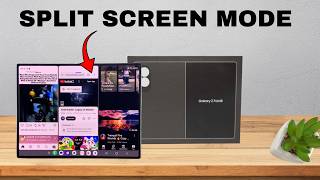
Split View puts two apps side by side on your iPad Mini so you can read one while typing in the other. It suits anyone running iPadOS 16 or later who wants to work with two apps at once. Both apps must support multitasking, which most Apple and popular third-party apps do.
YouTube video: How To Split Screen Multitask On iPad Mini 8!
Caption availability is unknown. Check the CC control in the YouTube player.
- Video length
- 1 min 55 s
- Time to do it
- 5 minutes
- Difficulty
- Easy
- Steps
- 7
What you need
Steps
Check that both apps support multitasking. Games, some video players and a few social apps only open full screen, so they will not sit in Split View.
Open the first app you want to use and leave it on the screen you need.
Swipe up slowly from the bottom edge of the screen and stop when the Dock appears. The app stays open behind it.
Touch and hold an app icon in the Dock, then drag it to the left or right edge of the screen. Release when the current app slides aside to make room.
Drag the dark divider between the two apps to the left or right to give one app more space.
Tap the three dots at the top center of the screen to switch between full screen, Split View and Slide Over.
To close one app, drag the divider all the way to the edge of the screen. The remaining app fills the display.
Tips and common mistakes
If the three dots do not appear, update to iPadOS 16 or later in Settings, then General, then Software Update.
Swipe up too fast and you go to the Home Screen instead of showing the Dock, so slow the gesture down.
You can swap sides by dragging an app's top bar across the divider.
In Slide Over the second app floats in a narrow panel, and you can flick it off the right edge to hide it.
Questions
Why can't I get two apps side by side?
One of the apps probably does not support Split View, which is common with games and some streaming apps. Try two Apple apps first, like Safari and Notes, to confirm multitasking works.
Does Split View work in portrait mode?
Yes, but the apps stack with one above the other instead of side by side. Rotate to landscape for the usual left and right layout.
How do I get rid of the floating app?
Swipe the floating panel off the right edge of the screen, or drag its top bar to the left edge until it closes.
The notes are drafted automatically from video details and general task knowledge. How the guide was prepared
Report a correction