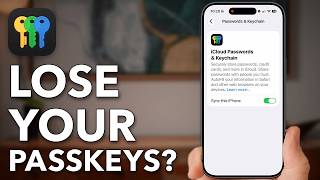
Passkeys let you sign in with your fingerprint, face or PIN instead of typing a password. This guide walks you through adding a passkey to an account, storing it safely and keeping a backup so you are not locked out. It suits anyone who wants stronger protection against phishing and stolen passwords.
YouTube video: Passkeys: The alternative to passwords that can stop account hacking | Explainer | Beyond Headlines
YouTube’s video details do not confirm captions. Check CC in the player for available tracks.
Choose a chapter (6)
- Video length
- 4 min 6 s
- Time to do it
- 10 minutes
- Difficulty
- Easy
- Steps
- 8
What you need
Steps
Check whether the account supports passkeys. Look under the security or sign-in settings on Google, Apple, Microsoft, PayPal, GitHub or your bank, or search an online passkey directory.
Make sure your phone or computer has a screen lock set up, such as a fingerprint, face or PIN. The passkey is unlocked with that, so it stays protected on the device.
Open the account's security settings and choose the passkey option, often labelled Add a passkey or Create a passkey. Confirm with your PIN, fingerprint or face.
When asked where to save it, pick iCloud Keychain, Google Password Manager or a hardware security key. Cloud storage lets you use the same passkey on your other devices.
Sign out and sign back in with the passkey to check it works. You should get a prompt on your phone or computer instead of a password box.
Keep your password as a backup and set a recovery method, such as a backup email or a second device. A passkey stored on one phone alone can lock you out.
Add a second device or a backup security key to the same account. If the first device is lost, stolen or wiped, you can still get in.
Review your passkeys every few months in account settings. Delete ones for old devices you no longer use, and start with your most important accounts.
Tips and common mistakes
Never approve a passkey or sign-in prompt you did not start yourself, even if it looks official.
Passkeys resist phishing because there is no code to type or share, so a fake login page gets nothing useful.
Some sites still do not support passkeys, so keep a long unique password and two-factor authentication there.
Store your backup codes offline in case you lose access to the device that holds the passkey.
Questions
Are passkeys safer than passwords?
Yes for most people. There is no password to guess, reuse or steal from a company database, and a fake login page cannot capture the passkey.
What happens if I lose my phone?
If the passkey is synced to iCloud or Google, sign in on a new device with that account. Otherwise use your backup security key, saved recovery codes or the service's account recovery.
Do I have to use passkeys on every site?
No. You can turn them on account by account, and many services let you keep your password as a fallback sign-in.
The notes are drafted automatically from video details and general task knowledge. How the guide was prepared
Report a correction