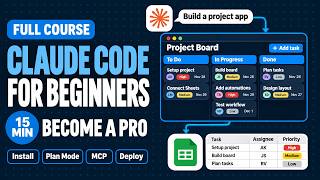
Claude Artifacts turn a chat reply into a working panel you can preview, edit and share. This guide walks you through building your first one, adding your own data and publishing it, then connecting outside apps with MCP. It suits beginners with no coding background and only needs a Claude account.
YouTube video: How to Use Claude Artifacts (Beginner Tutorial)
Caption availability is unknown. Check the CC control in the YouTube player.
Choose a chapter (14)
- Video length
- 12 min 42 s
- Time to do it
- 20 minutes
- Difficulty
- Easy
- Steps
- 10
What you need
Steps
Open claude.ai in your browser and sign in. Start a new chat, then look for the Artifacts panel on the right of the reply. Turn Artifacts on in settings if you cannot see it.
Ask for something small and visual, like a sales dashboard or a tip calculator. Press enter and Claude builds the Artifact in a preview pane next to the chat.
Upload your own file, such as a spreadsheet of sales figures, with the attach button in the chat box. Tell Claude which columns to use so the Artifact reads the data correctly.
Request changes in plain words: colours, chart type, layout or extra fields. Claude rewrites the Artifact and the new version appears straight away in the preview.
Use annotations to edit one specific part. Select the element you want changed and type what should be different instead of describing the whole page again.
Click Share to publish the Artifact or send a link to someone. Check the sharing setting first so only the people you choose can open it.
Open your Artifacts list to rename, revisit or delete what you have built. Older versions stay available so you can return to an earlier build.
Ask Claude to add AI features inside the Artifact, such as a chat box or a summary button, so the tool responds to input rather than showing fixed results.
Turn on data saving if the Artifact must remember entries between visits. Close the panel, reopen it and check your data is still there.
Connect outside apps through MCP, including Zapier MCP, so the Artifact can send or pull information from tools like Slack or Trello. Approve each connection when Claude asks.
Tips and common mistakes
Start with one small feature and add more once the preview works, since large first prompts are harder to fix.
Give each Artifact a clear name in your list so you can find it again weeks later.
Upload clean data with a single header row and no blank rows, or charts will come out wrong.
Look over the sharing link before posting it publicly, because anyone holding it can open the Artifact.
Questions
Do I need a paid Claude plan to use Artifacts?
Artifacts work on the free tier, but message limits apply. Paid plans raise those limits and newer features such as app connections.
Can I see or copy the code behind an Artifact?
Yes. Artifacts are built from HTML, CSS and JavaScript, and Claude shows the code alongside the preview so you can copy it elsewhere.
What does MCP mean here?
Model Context Protocol is an open standard that lets Claude talk to outside apps and services. Connecting an MCP server gives your Artifact access to those tools.
The notes are drafted automatically from video details and general task knowledge. How the guide was prepared
Report a correction