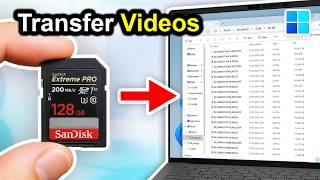
Move your clips off a DJI Osmo Action camera and onto a computer so you can edit, back up or free up card space. It suits anyone with an Osmo Action 1 through 6 and a USB cable or card reader. No extra software is needed.
YouTube video: How to Transfer Videos to PC / Laptop from DJI Osmo Action Camera 6, 5 Pro, 4, 3, 2 ,1
YouTube’s video details do not confirm captions. Check CC in the player for available tracks.
- Video length
- 3 min 7 s
- Time to do it
- 10 minutes
- Difficulty
- Easy
- Steps
- 8
What you need
Steps
Power off the camera and open the side port cover to reach the USB-C port.
Connect the camera to your computer with a USB-C data cable. Use a cable that carries data, not a charge-only one.
Turn the camera on. On the screen, choose the file transfer or USB mode option when it appears.
Open File Explorer on Windows or Finder on Mac. The camera shows up as a removable drive.
Open the DCIM folder and find the video files, usually in MP4 format.
Select the clips you want and copy them to a folder on your computer. Do not cut and paste until the copy finishes.
If the camera does not appear, take out the microSD card and put it in a card reader instead.
Eject the drive safely, then unplug the cable or remove the card.
Tips and common mistakes
Long recordings can be several gigabytes, so check free disk space before copying.
Copy files rather than moving them so a failed transfer does not lose your footage.
Use the original cable or a known data cable, since many USB-C cables only charge.
Questions
Why does my computer not show the camera?
The cable may be charge-only or the camera may be in the wrong USB mode. Try another data cable or use a microSD card reader.
Can I transfer over Wi-Fi instead?
Some Osmo Action models support wireless transfer through the DJI Mimo app, but a cable or card reader is faster for large video files.
The notes are drafted automatically from video details and general task knowledge. How the guide was prepared
Report a correction