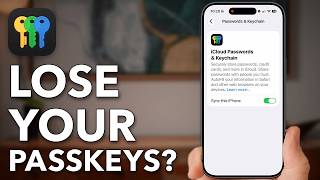
Passkeys let you sign in with your fingerprint or face instead of typing a password. This guide explains how they work, how to store them so they survive a lost phone, and what to do if your device goes missing. You need a phone with a screen lock and a password manager account.
YouTube video: Passkeys Explained: What If You Lose Your Device?
Caption availability is unknown. Check the CC control in the YouTube player.
Choose a chapter (8)
- Video length
- 4 min 4 s
- Time to do it
- 15 minutes
- Difficulty
- Easy
- Steps
- 7
What you need
Steps
Understand the basics first. A passkey is a pair of keys: a private one that stays locked on your device and a public one held by the website. Your fingerprint or face unlocks it locally.
Trust the phishing protection. A passkey is tied to the real website address, so a fake login page cannot use it, even if it looks identical.
Choose between synced and device-bound passkeys. Synced passkeys live in your password manager and follow you to a new phone. Device-bound passkeys stay on one device and are lost with it.
Open Google Password Manager on your phone, go to the passkeys section and create a passkey for a site that offers one. Confirm with your fingerprint, face or PIN.
Build your backup. Check that sync is switched on, that you know your Google or Apple account password, and that you have a second device you can sign in from.
If a device goes missing, sign in on another device, use the service's account recovery, then remove the passkeys stored on the old phone from your password manager.
Do one check today. Open a single important account, look at its passkey and recovery settings, and confirm you could still get in without your main phone.
Tips and common mistakes
Recovery steps differ between services and passkey providers, so follow their official instructions rather than a generic guide.
Keep your password manager account password strong and memorised, since it unlocks every synced passkey you own.
Keep one backup sign-in method, such as a printed recovery code or a second device, in case your phone is gone.
Device-bound passkeys cannot be restored, so use them only where you always have the device with you.
Questions
What happens if I lose my phone with passkeys on it?
Synced passkeys stored in your password manager come back when you sign in on a new device. Device-bound passkeys cannot be moved, so you will need the site's account recovery to get back in.
Do passkeys work across Android and iPhone?
Synced passkeys stored in Google Password Manager or iCloud Keychain work on devices signed in to the same account. Moving between Android and iPhone depends on the service, so check its support pages.
Are passkeys safer than passwords?
Yes, in most cases. There is no password to type or leak, and the private key never leaves your device, which blocks most phishing and reused-password attacks.
The notes are drafted automatically from video details and general task knowledge. How the guide was prepared
Report a correction