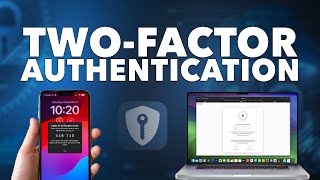
Microsoft Authenticator adds a second code to your sign-ins so a stolen password alone is not enough. This guide suits anyone securing a Microsoft, work or school account on Android or iPhone. You need your phone and the account password.
YouTube video: How to set up Microsoft Authenticator in 10 minutes
Captions are available. Use CC in the YouTube player.
Choose a chapter (5)
- Video length
- 12 min 28 s
- Time to do it
- 10 minutes
- Difficulty
- Easy
- Steps
- 8
What you need
Steps
Install Microsoft Authenticator from the Google Play Store or Apple App Store and open it.
Sign in to your Microsoft account security settings at account.microsoft.com/security and choose Advanced security options.
Select Add a new way to sign in or verify, then pick Use an app.
On the computer, a QR code appears. In the app, tap the plus icon and choose Add account, then Work or school account or Personal account.
Point your phone camera at the QR code on the screen and approve the sign-in request that pops up.
If you only have a phone, choose the option to set up without a QR code and enter the code shown on screen instead.
Turn on cloud backup in the app settings so your codes can be restored on a new phone.
Sign out and back in to test that the app approves your login.
Tips and common mistakes
Keep a backup sign-in method such as a phone number or recovery code, or you can lock yourself out.
Never share an approval prompt you did not start; deny unexpected requests and change your password.
Cloud backup needs a personal Microsoft account, so work accounts may not offer it.
Questions
Do I need a computer to set it up?
No. If you only have a phone, choose the setup option that shows a code instead of a QR code and type it into the app.
What happens if I lose my phone?
Use your backup sign-in method or recovery code to get back in, then set up the app again on the new phone.
Is Microsoft Authenticator free?
Yes, the app is free on Android and iPhone.
The notes are drafted automatically from video details and general task knowledge. How the guide was prepared
Report a correction